
Calendar colors and hiding events
Two settings in Step 6 shape how your calendar looks on the page: the color of each calendar, and the Hide events containing list that keeps unwanted events out.
Color per calendar
Next to every calendar in Step 6 is a swatch and a choice:
Default — the accent color of the current month. Every month has its own color (the month tabs use the same palette), so Default events always match the page they're on.
Google / Microsoft — the color the calendar has in Google Calendar or Outlook. In Outlook, category colors assigned to individual events are used as well. Choose this if you already color-code your calendars and want the planner to match.
Custom — any hex color. Useful for iCal feeds (which usually don't carry a color), and whenever you'd rather have a clear, standard green or blue than the palette of your calendar app — for instance if you find some shades hard to tell apart.
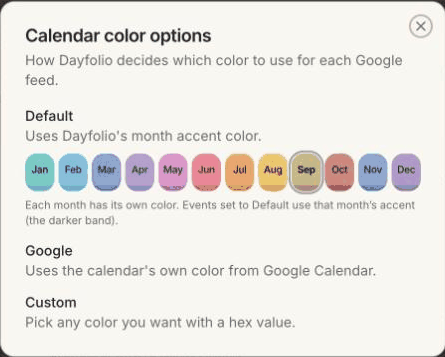
The Microsoft choice is offered for calendars that have a specific color in Outlook. A calendar set to Outlook's Auto color has no color value to read; give it a color in Outlook on the web (right-click the calendar → Color) and sync, or pick a Custom color in Dayfolio.
Colors apply to event blocks on the Day and Week Views, to the pills on the Month View and to the markers on the Year View. Change a color, press Sync now, and the whole planner is regenerated with it.
Text that stays readable
Whatever the background color, Dayfolio sets the text color of each event for contrast — dark text on a light calendar color, light text on a dark one — which matters on e-ink screens where some combinations lose contrast. For even more legibility:
turn on High legibility in Step 1 (event text in solid black, lighter invite backgrounds) — see Appearance: Colored, Black & White and High legibility;
pick a larger Calendar event text size in Step 4 — see Day, Week & Month View settings;
on a reMarkable that has it (the Paper Pro and Paper Pro Move do), set ⋮ → Increase contrast to Full page instead of the default Adaptive.
Hide events containing
Below the calendar sources is a list of words. Any event whose title contains one of them is left out of the planner entirely: it doesn't appear on any view and gets no Meeting Notes page. It applies to Google, Microsoft and iCal feeds alike.
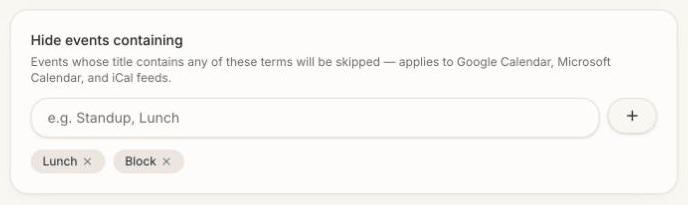
Type a word or phrase, press +, and remove one with its ×. Typical uses:
personal blockers you don't need on paper ("Lunch", "Gym", "Block", "Focus time");
entries a feed adds that you don't want (birthdays from a family calendar);
automatic reminders that would otherwise get a Meeting Notes page when Step 7 is set to create pages for all timed events.
The match is on the title only, and it's a contains match: "Block" also hides "Blocked for travel". Check the result with the Live Preview, which shows a day exactly as the planner will, without the hidden events, and press Sync now to apply it to the planner.