
My planner didn't update — checklist
Most "it didn't update" cases are the tablet still showing the previous file. Go through the list in order; each step takes a minute.
1. Check the footer
Every page ends with the date and time of the generation you're looking at. Compare it with the change you're waiting for and with Last synced on your planner page at app.dayfolio.io:
Footer is at or after the change you made (or the Sync now you pressed) — you're on the latest version, and what you're missing wasn't in the sync. See Calendar events missing, duplicated or on the wrong day, Tasks missing or A meeting has no notes page.
Footer older than your change — the tablet hasn't downloaded the new file. Continue.
Last synced older than expected, or "never" — the sync itself didn't complete. Jump to step 5.
Last synced a little ahead of the footer is normal: a sync only generates a new PDF when something changed, so a Smart Sync+ run that found nothing new updates Last synced but not the footer. See The footer: when was this planner generated?.
2. Close the planner and let the tablet sync
The reMarkable doesn't refresh a document while it's open. Close the planner, go back to My files, make sure Wi-Fi is on, and wait for the sync icon at the top of the screen to finish. Then reopen the planner and check the footer and the TODAY badge on today's page. A good habit: close the planner at the end of the day, and open it from My files in the morning.
3. Force a sync on the tablet
Settings → Cloud → Check sync on the reMarkable makes it fetch changes right away. Reopen the planner afterwards.
4. Is the new version in the cloud?
Open the reMarkable mobile or desktop app, or my.remarkable.com, and look at the planner's modification time. If the cloud has the new version and the tablet doesn't, the tablet and the cloud are out of step: a restart of the tablet usually clears it.
5. Run a sync and watch the status
Press Sync now on your planner page. The status goes generating → uploading → done, and Last synced updates.
Stops at uploading, or fails repeatedly — the reMarkable Cloud connection needs renewing: Sync options → Step 10 → Reconnect with a different code, then sync again. See The reMarkable Cloud connection.
A calendar or task connection has an orange or red dot on the planner page — reconnect it first: Reconnecting a calendar.
You just disconnected a calendar or task app — reconnect it, or connect the one you want, and sync again; a sync right after a disconnect can fail once.
You deleted the planner on the tablet — restore it from the reMarkable Trash and sync; see Renaming, moving or deleting the planner file.
Status dots show where a problem is. On the dashboard at app.dayfolio.io, your planner's card has one dot for each group of connections: Calendar, Tasks and reMarkable.
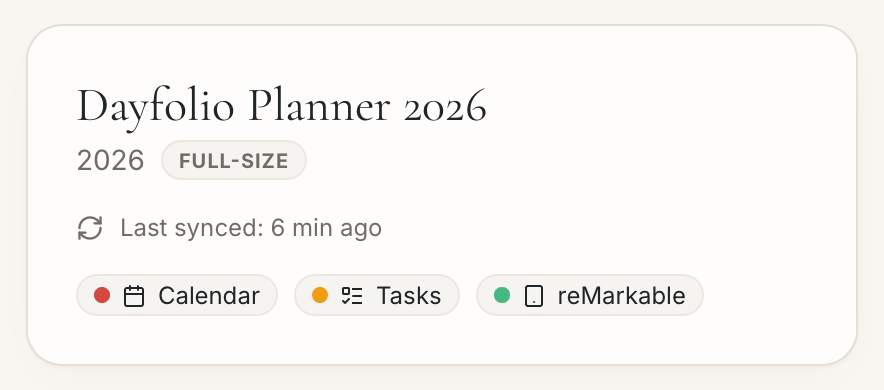
Open the planner (click its card) to see a dot next to every single connection: each calendar account or feed, each task app and the reMarkable Cloud.
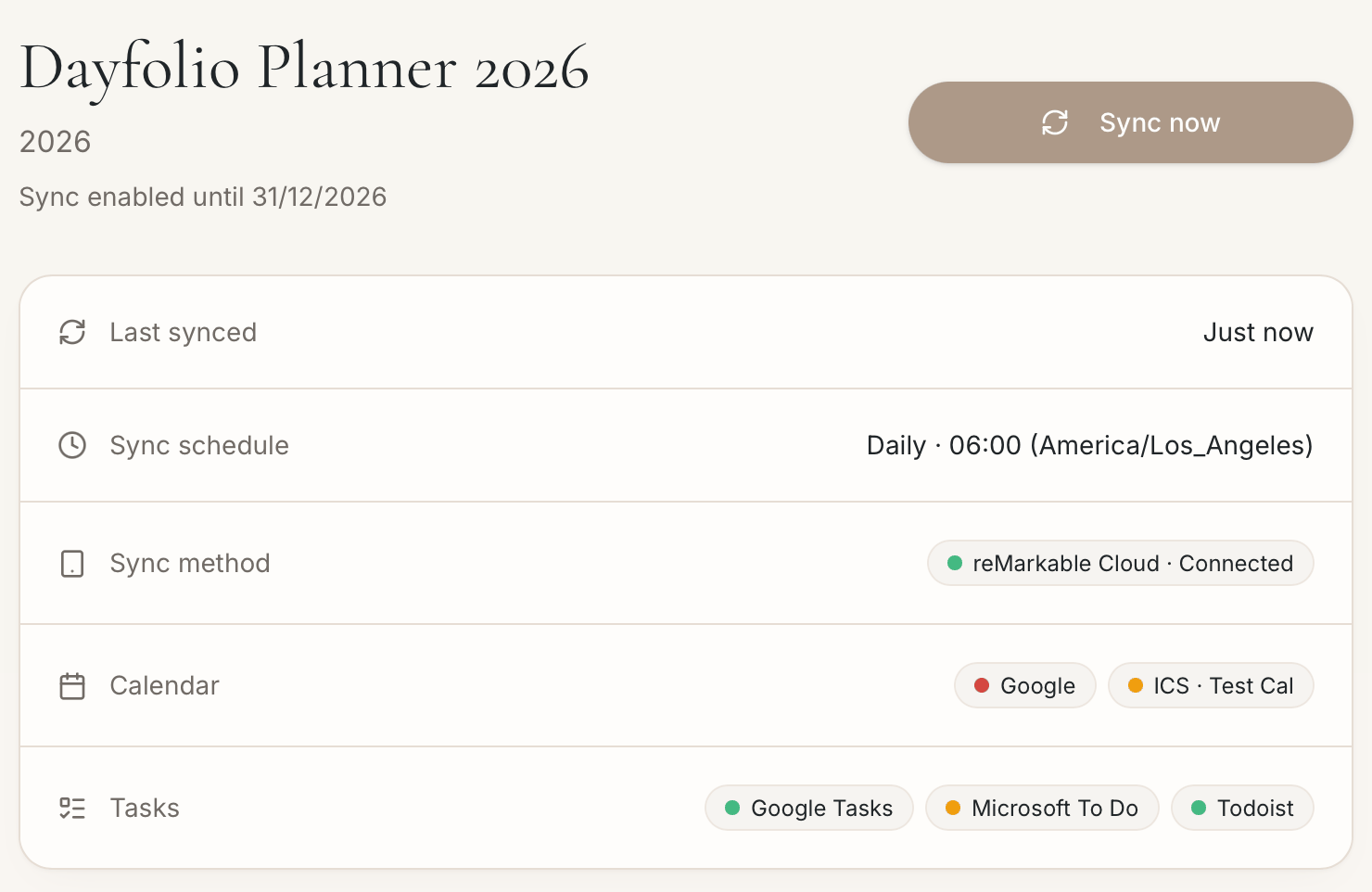
green — working;
orange — there was a problem with that connection, but the sync went ahead without it;
red — the sync failed because of it.
Reconnect the connection marked orange or red, then press Sync now. Dayfolio also emails you when a sync fails, so check your inbox, notifications and spam folder.
6. After a reMarkable software update
reMarkable occasionally changes its cloud service, most often in beta software versions, and syncing can fail until Dayfolio adapts — usually within hours. If syncs started failing right after an update, wait 30 minutes to an hour and press Sync now again; no need to reconnect. If it persists, write to hello@dayfolio.io with your reMarkable model and software version (Settings → General → Software).
Links open the wrong page, or pages look duplicated
That's a different problem, with a one-click fix: Repair planner index.