
Connecting Google Tasks
Connect
Open your planner at app.dayfolio.io → Task settings (or Edit settings → Step 8).
In the Google Tasks card, press Connect and choose the Google account that holds your tasks. It can be a different account from the one connected for Google Calendar, and different from your Dayfolio email.
Allow the requested access, then press Sync now in Step 8.
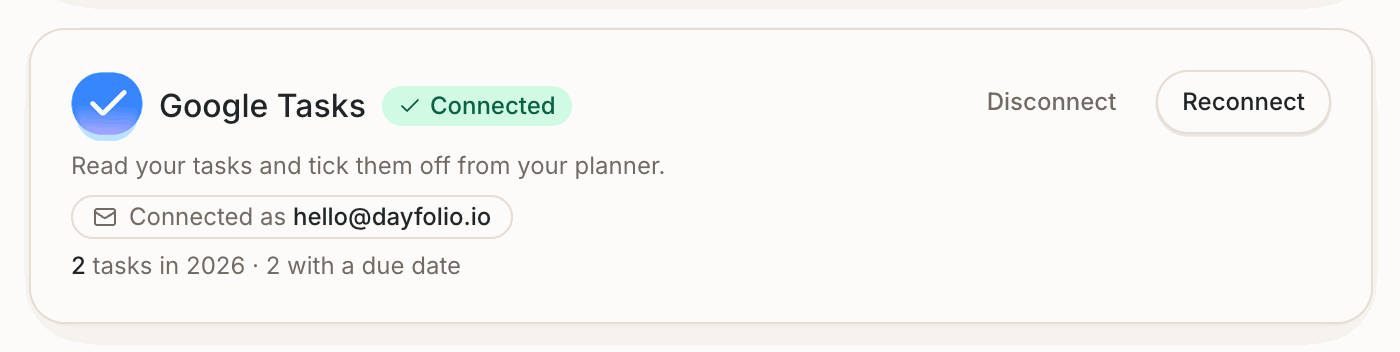
The card then shows the connected account and how many tasks it found this year — a quick way to confirm it's the right Google account.
Why read-and-write
Dayfolio reads your tasks and, when you check one off on the reMarkable, marks it completed in Google Tasks — that write is the whole reason for the permission. Nothing else is written — no new tasks, no edits to titles or lists — except the new due date of unfinished tasks if you turn on Move unfinished tasks to today. (The Google Calendar connection is separate and read-only.) Every task connection needs write access for the same reason; the only things Dayfolio writes are a task's completed or reopened state and, with Move unfinished tasks to today on, its new due date.
What comes in
All your lists, with the list name shown next to each task and used to group the By list tab of the Tasks Index. Google Tasks has no priority field, so its tasks keep their list order on the Day View and are placed after prioritized tasks from Todoist, Microsoft To Do or Microsoft Planner when several apps are connected.
Use the date field, not the deadline
Google Tasks offers two date fields: the date (the scheduled date, shown with the time picker) and a separate deadline. Dayfolio places tasks by the date field — Google doesn't make the deadline available to connected apps. To have a task appear on a Day View, give it a date; a task with only a deadline is listed in the Tasks Index without a day.
Completing tasks
Draw a check inside the circle on the Day View; at the next sync the task is completed in Google Tasks. Erase it to reopen. Completing a task in Google Tasks turns it green on the planner at the next sync. See Completing a task with your pen.
One account per planner
One Google Tasks account is connected per planner. If your tasks are split between a personal and a work account, connect the one with the tasks you want on paper, or move the tasks you need into one account. Other task apps can use a different account — for example Google Tasks with your personal account and Microsoft To Do with your work account.