
Your first sync and finding the planner on your reMarkable
Run the first sync
On your planner page at app.dayfolio.io, press Sync now.
The status goes through generating and then uploading. A full sync rebuilds the whole planner and can take a few minutes — you can close the tab; it will finish on its own.
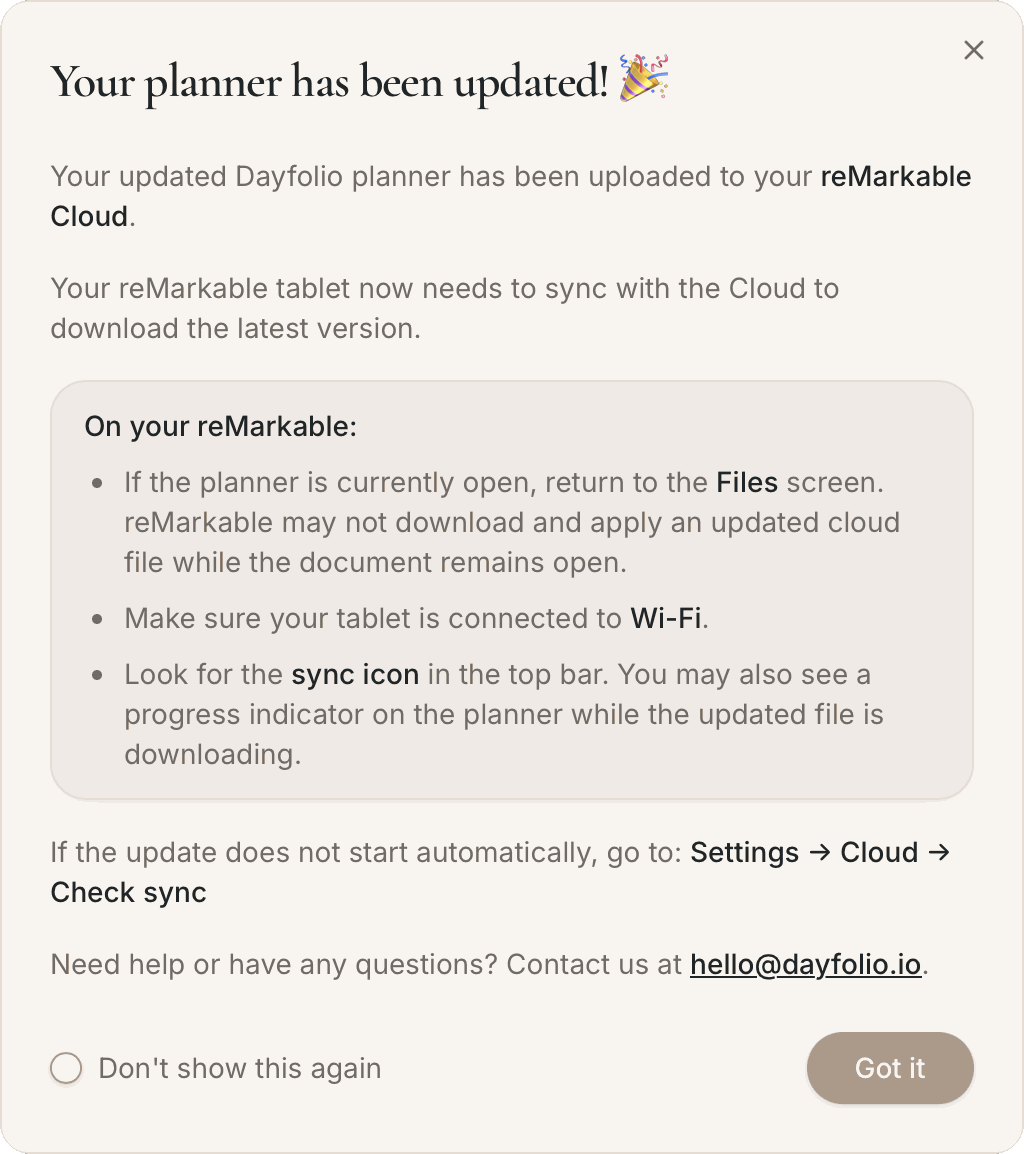
When it's done, Last synced shows the time, and a message confirms that the planner is in your reMarkable Cloud and recaps what to do on the tablet.
Find it on your tablet
Make sure the reMarkable is connected to Wi-Fi.
Go to My files. The planner appears as a new document with the name you chose (for example Dayfolio Planner 2026). If it isn't there yet, wait for the sync icon at the top of the screen to finish, or go to Settings → Cloud → Check sync.
Open it. You can rename it or move it into any folder — Dayfolio keeps syncing to the same file.
A few things to know on day one
Tap with your finger, write with the pen. On reMarkable, links inside a PDF are activated by finger touch; the pen always draws. See Navigating the planner: finger vs. pen, header icons and badges.
Check the footer. Every page shows the date and time the planner was last generated, so you always know which version you're looking at. See The footer: when was this planner generated?.
Close the planner before you expect an update. The tablet doesn't refresh a document while it is open. After a sync, go back to My files, wait for the sync icon, then reopen. See My planner didn't update — checklist.
Blank "Reserved page" pages at the end are normal. If you swipe past the last real page you'll find spare pages Dayfolio fills in over the year — nothing is lost. See Reached a blank "Reserved page"? Your planner is still there.
Handwriting is safe. Every sync updates events and tasks around your notes; nothing you wrote is removed.
Take the tour. Your planner at a glance walks through every view, the Meeting Notes pages and the indexes.
Daily updates from now on
Dayfolio syncs automatically once a day at the hour you chose in Step 9 — Sync frequency, and you can press Sync now as often as you like. If your schedule changes a lot during the day, Smart Sync+ keeps the planner updated throughout the day.