
Completing a task with your pen
Checking a task off on paper and having it done in your app is the heart of the task integration.
How to
Open the Day View and find the task in the To Do List.
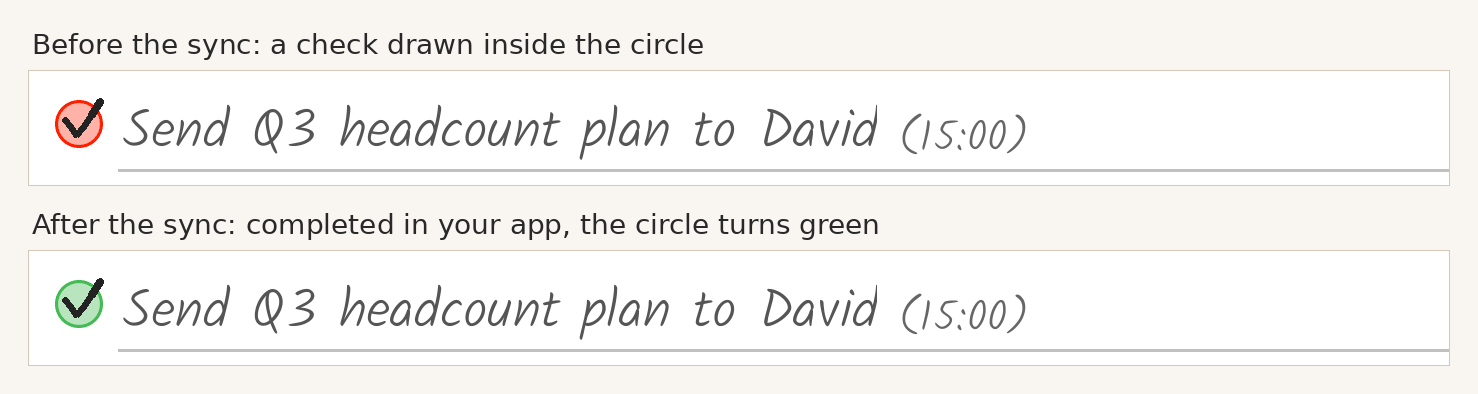
With your pen, draw a check (or any stroke) inside the task's circle. Any reMarkable pen works; a finger tap doesn't — the finger follows links, the pen writes.
At the next sync, Dayfolio reads the stroke, marks the task completed in your app, and the circle turns green on the regenerated page.
You can draw a generous check; just keep it out of the circles of the tasks directly above and below.
Reopening a task
Erase the stroke inside the circle and sync. Dayfolio sees the empty circle and reopens the task in the app; the circle turns red again.
When the check is read
Strokes are read during a sync, not the moment you draw them:
at your daily automatic sync;
when you press Sync now at app.dayfolio.io;
throughout the day with Smart Sync+, an optional add-on that runs several more syncs a day, so a check is completed in the app sooner, and the green/red state on the page stays current. See Daily sync, Sync now and Smart Sync+.
Turn on Email me when tasks are updated after a sync in Step 8 to receive, after each sync, the list of tasks that were completed or reopened — the simplest confirmation that a check was read. See Task email notifications.
Completing a task in the app instead
That works too: a task you complete in Todoist, Google Tasks, Microsoft To Do or Microsoft Planner turns green on the planner at the next sync. It stays on its day as a record; only the check you'd have drawn is missing, since nobody drew it.
What can be checked off
Tasks that came from a connected app and are placed on a Day View. Lines you filled by hand are yours — they aren't linked to a task app, so there's nothing for Dayfolio to complete. Tasks in the Tasks Index can't be checked there either; tap the task to jump to its Day View. For unfinished handwritten tasks, see Carry handwritten tasks to the next day.
If the tablet still shows the old state
After a sync, the reMarkable has to download the new planner: close it, go back to My files, wait for the sync icon to finish and reopen it. The footer shows when the page was generated.