
How calendar events appear in each view
The same event is drawn differently depending on the page, because each view has a different job. Here is what to expect.
Day View
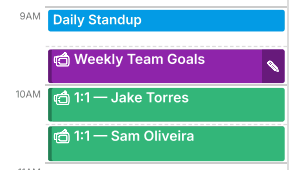
Timed events are drawn as blocks in the hourly schedule, between the start and end hours you chose in Step 4, with their title and time. The block's color is the calendar's color; the text color is adjusted for contrast.
Overlapping events sit side by side.
Short events (5–15 minutes) keep a minimum height so the title stays readable.
Camera icon — the event has a Meeting Notes page; tap the block to open it. A pencil means the page already contains handwriting.
Declined invitations stay visible, struck through and outlined, the way Google Calendar shows them. If you'd rather not see one at all, remove it from your calendar and sync.
Events that start before or end after your Day View hours aren't drawn in the schedule (they're still in the planner — on the Week and Month Views and in Meeting Notes). If you have early or late events, widen the range in Day, Week & Month View settings.
Week View
The week grid draws timed events the same way as the Day View — colors, camera and pencil icons, strike-through for declined invites — one column per day, for the workweek or the full week depending on Step 4. All-day and multi-day events run across the top of their days. The Week Stats box counts invites, meeting hours, accepted invitations and conflicts for the week.
Month View
All-day and multi-day events — colored pills; a vacation block spans all its days, across week boundaries.
Timed events — a small dot per day by default, or pills with the title if you turn on Show timed events in Step 4.
Cell style — Planning mode shows up to three events per day and leaves room to write; Calendar mode shows everything.
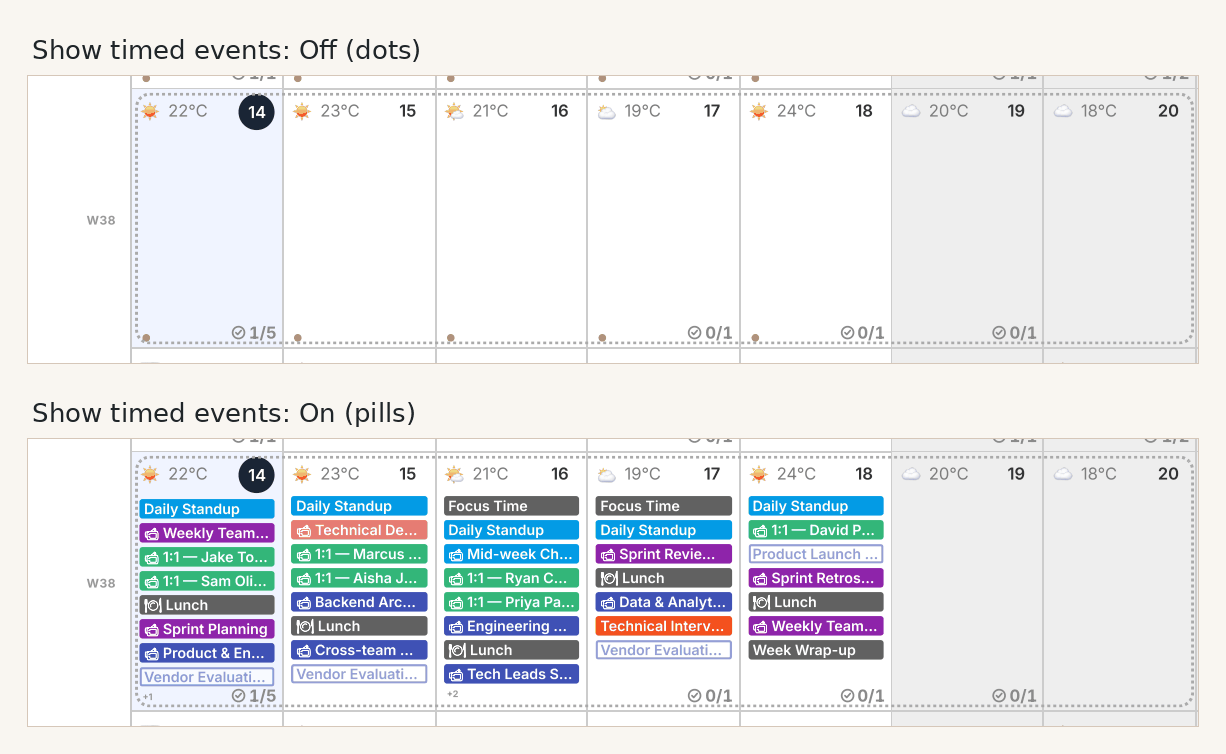
So a timed event that is on the Day View but "missing" from the Month View is simply its dot; enable Show timed events if you want titles there. See Month View.
Year View
Every day that has events shows a small colored marker — the calendar's color — so busy periods stand out. Tap the day number to open its Day View. Titles aren't listed on the Year View; it's a map of the year.
Multi-day and overnight events
Multi-day all-day events appear as connected pills on the Week and Month Views. Timed events that start on one day and end on the next (an overnight flight, for example) are supported on the Day and Week Views as well.
Recurring meetings
Occurrences appear on their dates in every view. Each recurring meeting also gets a Series page listing all its occurrences (past, this week, upcoming) with ‹ previous / next › navigation, reachable from the SERIES button on any of its Meeting Notes pages — see Meetings Index and Series pages. Series grouping uses the recurrence information the Google and Microsoft connections provide; iCal feeds are grouped when they include it.
Meeting Notes pages
Every event Dayfolio treats as a meeting gets its own page with the details, attendees, description and a notes area, and the event block on the Day, Week and Month Views links to it. Which events get a page (Smart detection or all timed events) and how far ahead is set in Step 7 — see Meeting Notes pages.
Times and time zone
Event times are printed in 12-hour or 24-hour format and placed in the time zone from Step 3 — see Language, time format and time zone. After changing either, press Sync now: the format is applied when the planner is regenerated.