
Connecting Microsoft To Do
Connect
Open your planner at app.dayfolio.io → Task settings (or Edit settings → Step 8).
In the Microsoft To Do card, press Connect and sign in with the Microsoft account that holds your tasks. If Microsoft signs you in automatically with another account, choose Use another account. The account doesn't need to match your Dayfolio email, nor the account connected for Microsoft Calendar.
Allow the requested access, then press Sync now in Step 8.
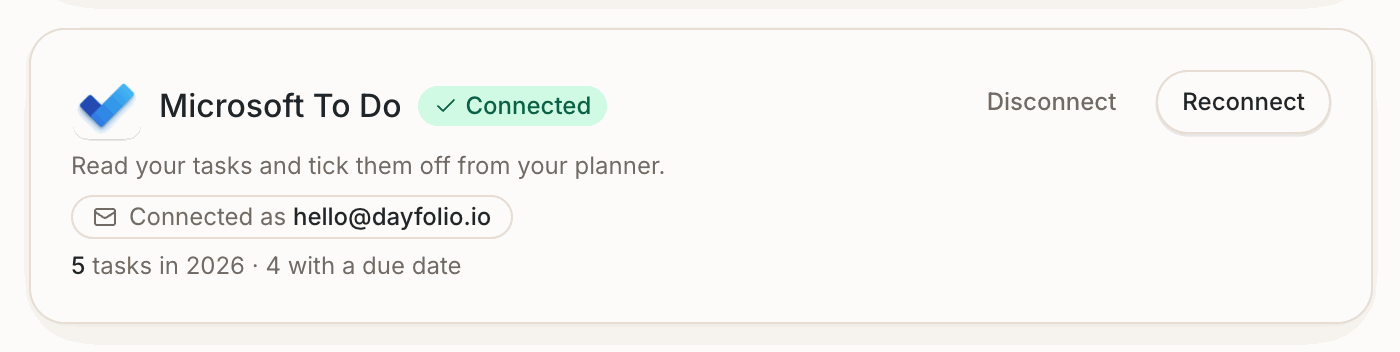
The card then shows the connected account and how many tasks it found this year — a quick way to confirm it's the right account.
What comes in
All your lists — My Day, Planned, the lists you created, and shared lists as far as Microsoft makes them available to the account. The list name is shown next to each task and groups the By list tab of the Tasks Index.
Importance sets the order on the Day View: High first, then Normal, then Low. When Todoist is connected too, a Todoist P1 sits above a To Do High.
Due dates
A task with a due date appears on that Day View, in your planner's time zone; a task without one is listed in the Tasks Index. Tasks with a reminder or a recurrence keep them; the next occurrence of a recurring task appears once the current one is completed.
Completing tasks
Draw a check inside the circle on the Day View; at the next sync the task is completed in Microsoft To Do. Erase it to reopen. Completing a task in To Do turns it green on the planner at the next sync. See Completing a task with your pen.
Microsoft Planner tasks
Tasks assigned to you in Microsoft Planner — including the ones Microsoft To Do shows in its Assigned to me list — come in through an extra option in this same card: Also include Microsoft Planner tasks. It uses the Microsoft connection you already authorized and is offered on accounts that have Planner, which personal Microsoft accounts often don't. If some of your Microsoft tasks seem to be missing, this option is the first thing to check. See Connecting Microsoft Planner.
One account per planner
One Microsoft To Do account is connected per planner. If your tasks are split between a personal and a work account, connect the one with the tasks you want on paper — or move the tasks you need into one account.