
Connecting your calendars: an overview
Dayfolio reads your calendar and prints the events into the planner: hour by hour on the Day and Week Views, as pills and dots on the Month View, as markers on the Year View, and as a Meeting Notes page for every meeting. Everything is set up in Step 6 — Connect your calendar at app.dayfolio.io (from your planner page: Change calendar).
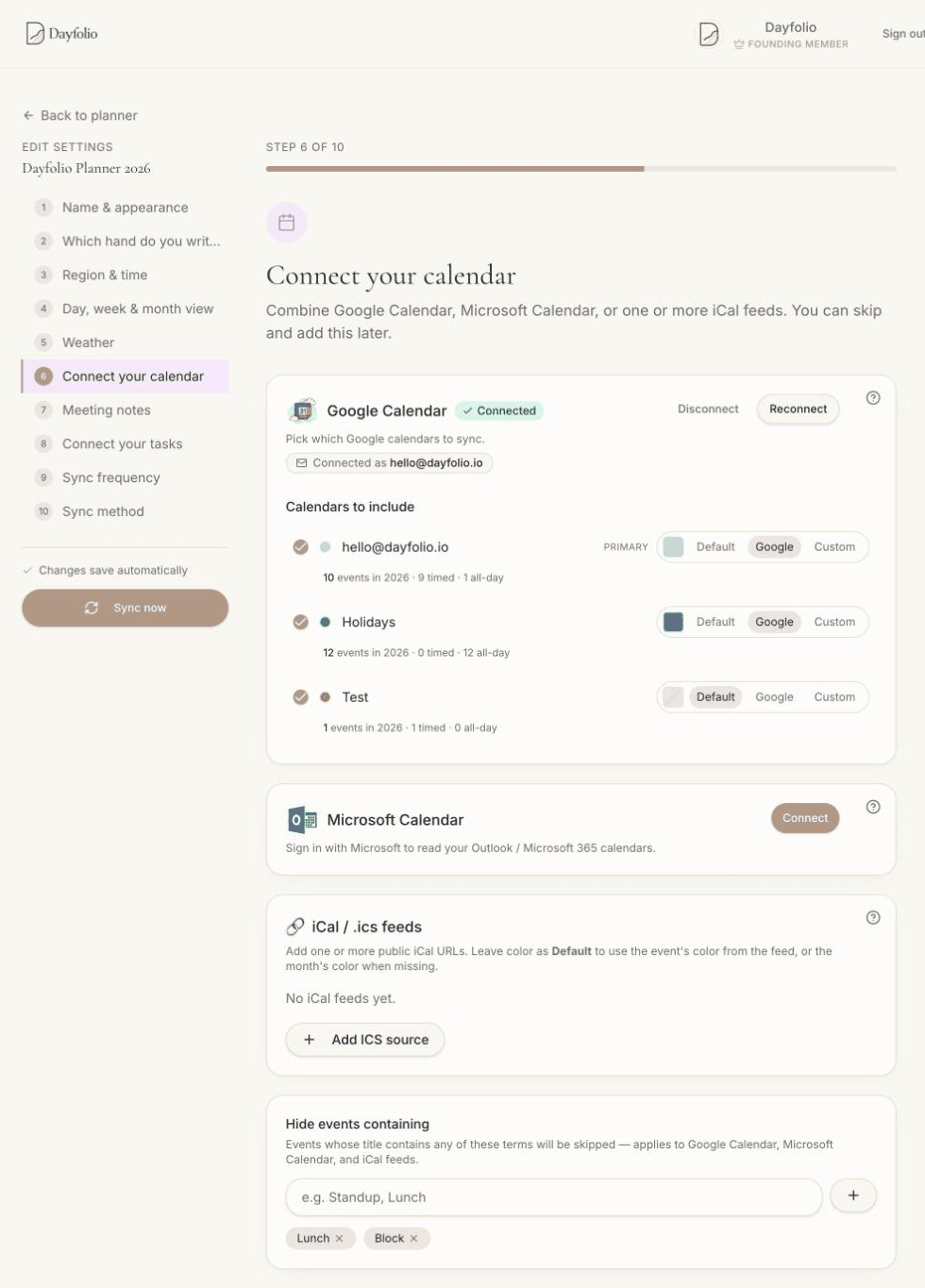
Three ways to connect
Google Calendar — sign in with Google once; every calendar of that account (personal, work, shared, holidays…) becomes available with a checkbox. See Connecting Google Calendar.
Microsoft Calendar — sign in with Microsoft for Outlook.com, Microsoft 365 and Exchange Online calendars. See Connecting Microsoft Calendar (Outlook, Microsoft 365).
iCal / .ics feeds — paste the public subscription link of any calendar: Apple/iCloud, Outlook on the web, a second Google account, Cozi, Nextcloud, school and sports calendars, and so on. See Adding a calendar with an iCal/ICS link.
You can use all three at the same time. Each source is listed separately in Step 6, and you choose which individual calendars to include. See Combining calendars from several accounts.
What you control per calendar
Include or not — the check mark next to each calendar.
Color — the month's accent color (Default), the color from Google or Outlook, or any Custom hex color. See Calendar colors and hiding events.
Hide events containing — words that remove matching events from every source before the planner is built ("Lunch", "Block", "Focus time"…).
Live Preview — pick any day of this week or next and see exactly which events Dayfolio would put on that page. See Previewing a day before you sync.
Read-only, by design
Dayfolio only reads your calendar. It never creates, edits or deletes events, and nothing you write on the planner is sent back to your calendar. To change an event, edit it in Google Calendar, Outlook or your calendar app and sync; the planner reflects it on the next regeneration. This is also why Dayfolio asks only for read-only calendar permissions when you connect.
When events are refreshed
Events are read every time the planner is generated: at your automatic daily sync, whenever you press Sync now, and many times a day with Smart Sync+. The footer of every page shows when the planner was last generated. Because delivery goes through the reMarkable Cloud, it works wherever your tablet has an internet connection — at home, in a hotel or on a hotspot.
Connections belong to the planner
Calendar connections are configured per planner. If you have two planners (for example a full-size and a Move version), each has its own Step 6. Selections, colors and filters are also per planner, so two people using one shared calendar can each have their own setup — see Combining calendars from several accounts.
Where events show up
Each view draws events differently — timed blocks on the Day View, pills or dots on the Month View, a marker on the Year View. How calendar events appear in each view walks through all of them, including multi-day events, declined invites and recurring meetings.