
Connecting Todoist
Connect
Open your planner at app.dayfolio.io → Task settings (or Edit settings → Step 8).
In the Todoist card, press Connect and sign in to Todoist with the account that holds your tasks.
Allow the requested access. Dayfolio reads your tasks and writes back completions when you check a task off on the reMarkable (and new due dates, if you turn on Move unfinished tasks to today).
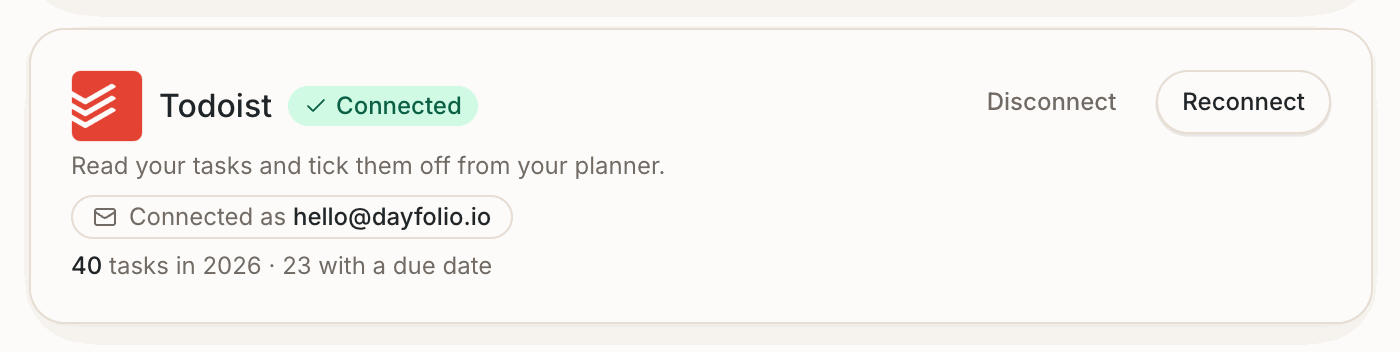
Back in Step 8, the card shows Connected, the account, and how many tasks it found this year and how many have a due date. Press Sync now.
What comes in
Every active task from every project — Inbox, personal and work projects, shared projects. There's nothing to select on the Dayfolio side.
Project name and color, shown next to the task on the Day View and used to group the By list tab of the Tasks Index.
Priority — P1 to P4. Tasks are placed on the Day View highest priority first, so P1 sits on the first line.
Labels, recurring tasks (marked ↻) and scheduled times (shown in parentheses).
Where a task appears
With a due date — on that day's Day View, where you can check it off with your pen.
Without a due date — in the Inbox section of the Tasks Index, as a reading list. Give it a date in Todoist and it moves to that day at the next sync.
See Tasks on the Day View: placement, order and lines.
Completing tasks
Draw a check inside the circle on the Day View; at the next sync the task is completed in Todoist. Erase the check to reopen it. Completing a task in Todoist turns it green on the planner at the next sync. See Completing a task with your pen.
Recurring tasks
Dayfolio shows the next occurrence of a recurring task, the way Todoist does; once it's completed, the following one appears at the next sync.
One account per planner
One Todoist account is connected per planner. If your tasks are split between a personal and a work account, connect the one with the tasks you want on paper, or move the tasks you need into one account. Other task apps can use a different account at the same time.
If you used a Todoist iCal link before
Some people added Todoist to Dayfolio as a calendar feed. The direct connection is the better one: tasks go to the To Do List rather than appearing as all-day events, they keep their project and priority, and they can be completed with the pen. Remove the Todoist feed in Step 6, connect Todoist in Step 8, and sync.