
The reMarkable Cloud connection
Step 10 — Sync method is where Dayfolio is paired with your reMarkable account. Your planner is delivered through the reMarkable Cloud.
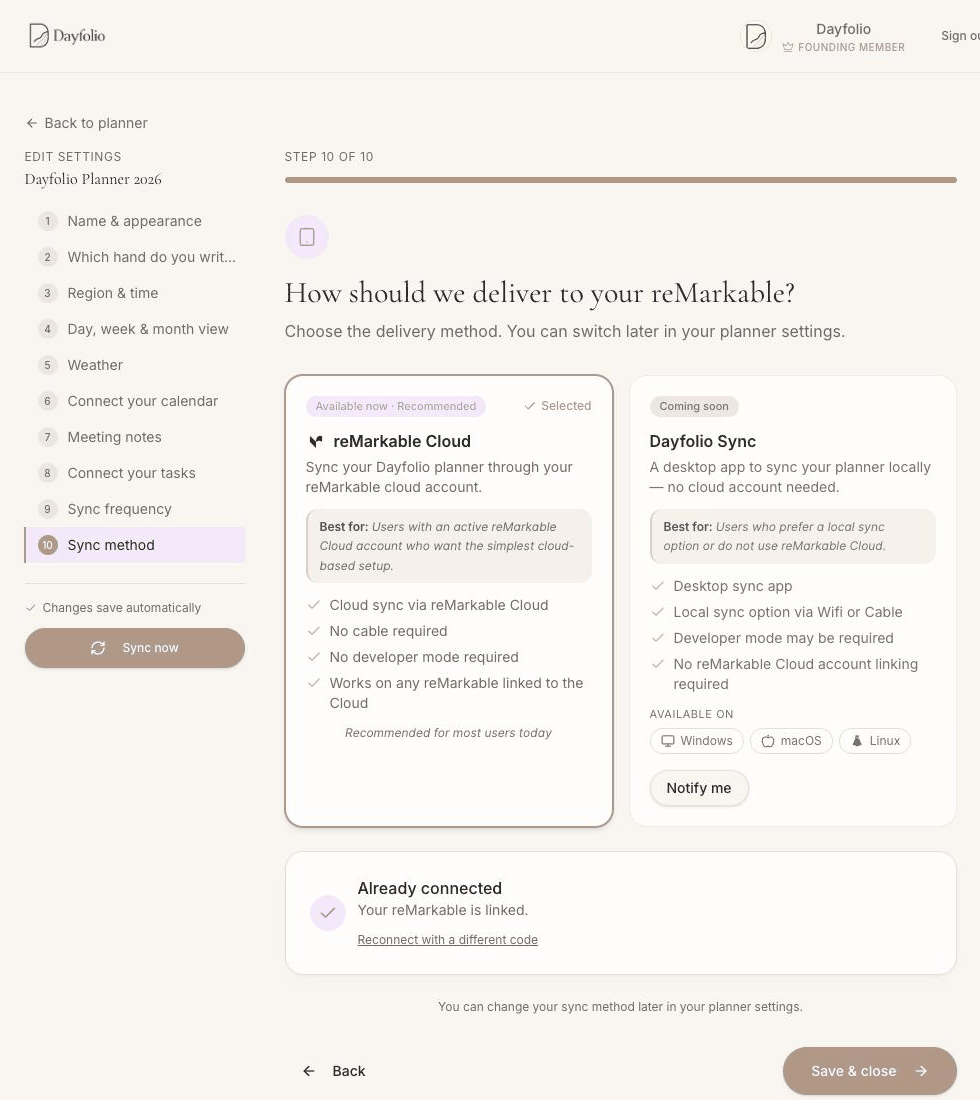
reMarkable Cloud
Your planner is uploaded to your reMarkable Cloud account and your tablet downloads it like any other document. It needs:
a reMarkable tablet signed in to a reMarkable account (the one you use at my.remarkable.com);
a one-time pairing code from my.remarkable.com, entered once in Step 10 — see Connecting your reMarkable account.
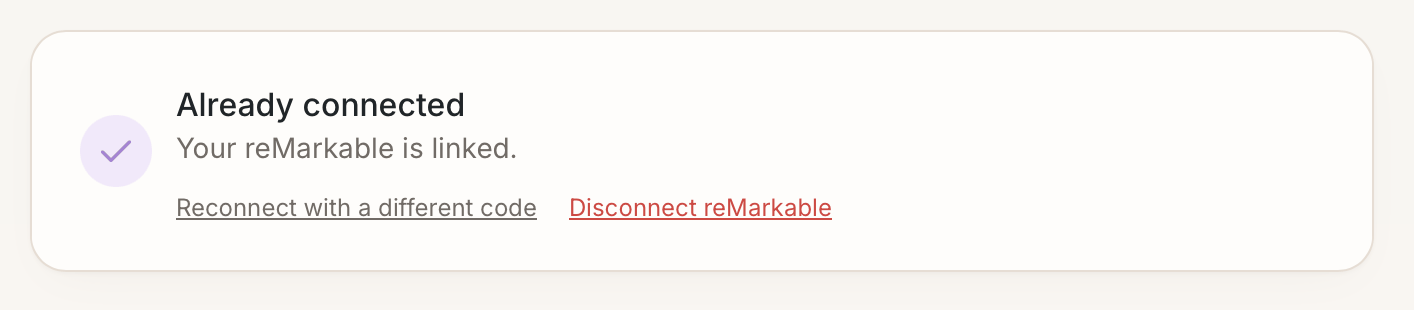
No cable, no developer mode, no reMarkable Connect subscription. After pairing, Step 10 shows Already connected — Your reMarkable is linked, and your planner page shows Sync method: reMarkable Cloud · Connected.
What Dayfolio keeps
The code is exchanged once for a connection token that Dayfolio stores encrypted and uses for every upload. Dayfolio uses it to upload and update its planner documents. At my.remarkable.com → Devices and apps, the pairing appears with a generic name (reMarkable labels third-party apps that way); removing it there stops Dayfolio from syncing until you pair again.
Reconnecting
The token can stop working — after a long period without syncs, after some reMarkable software updates, or if you removed the app at my.remarkable.com. Your planner page then shows the connection as needing attention and syncs fail at the uploading stage. To fix it, open Step 10, press Reconnect with a different code, generate a new code at my.remarkable.com and paste it, then press Sync now. The current link stays active until the new code is accepted. Your planner file and handwriting on the tablet are untouched; only the link between Dayfolio and the cloud is renewed. See My planner didn't update — checklist.
Disconnecting
To remove the link, press Disconnect reMarkable in Step 10 and confirm.
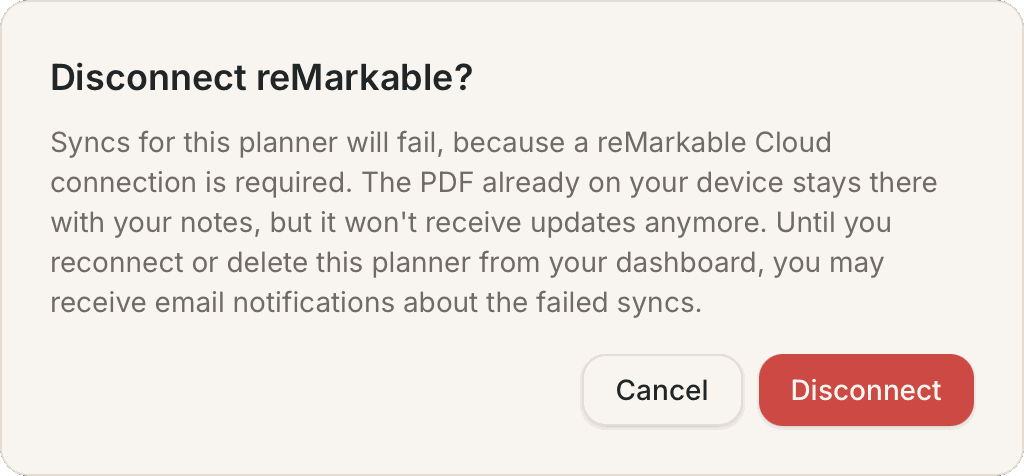
Syncs for that planner then fail, because the reMarkable Cloud connection is required. The planner file and your notes stay on the tablet, but they no longer receive updates. Until you reconnect or delete the planner from your dashboard, you may receive emails about the failed syncs.
Two tablets, one account
A planner delivered to a reMarkable account appears on every tablet signed in to that account, with the same handwriting on both. For two people who each want their own notes, use two reMarkable accounts and one planner per account, each with its own Dayfolio subscription — see Combining calendars from several accounts.