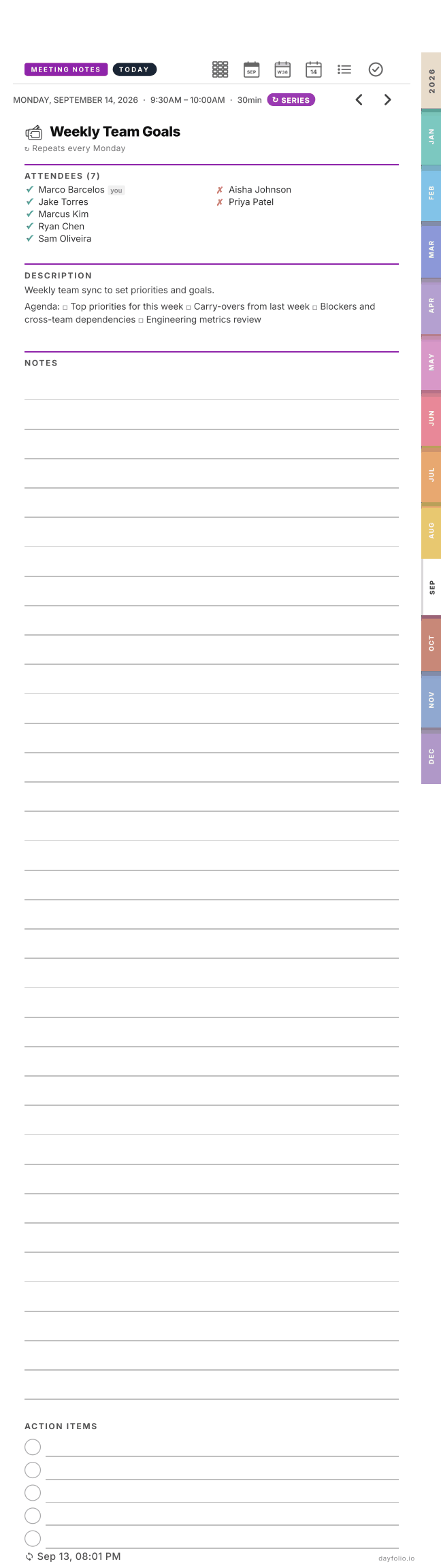
Meeting Notes pages
For every event Dayfolio identifies as a meeting, the planner contains a dedicated page. Tap the event on a Day, Week or Month View (with your finger) and you land here.
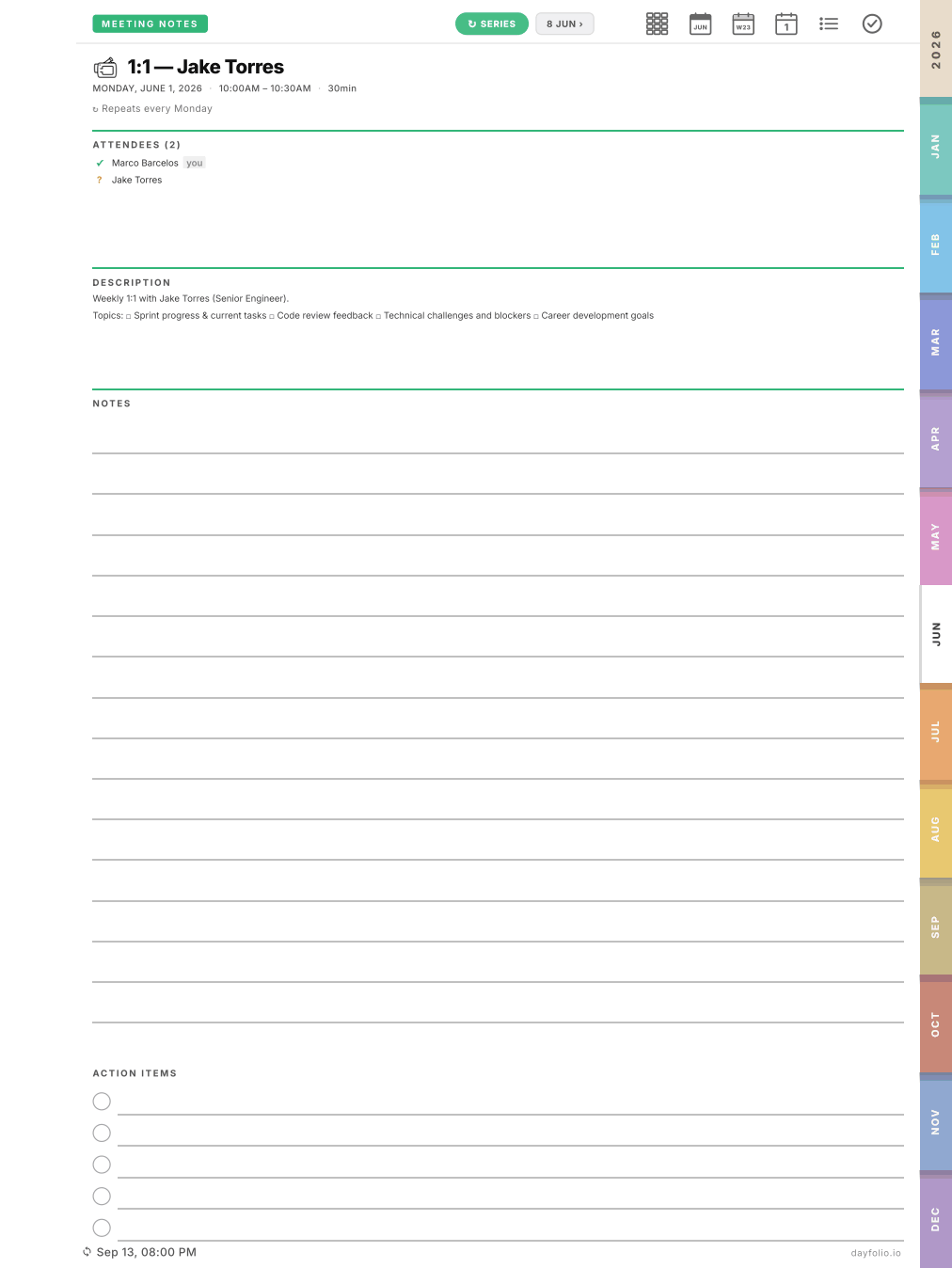
What's on the page
Badges at the top: MEETING NOTES, the position in time (TODAY, TOMORROW, LAST WEEK…) and, for recurring meetings, a SERIES button plus ‹ previous and next › links to the other occurrences.
Title, date, time and duration, and the recurrence rule ("Repeats every Monday").
Attendees with their response: ✓ accepted, ✗ declined, ~ tentative, ? pending. Your own name is tagged you.
Description — the text of the invite (agenda, links).
Notes — the main lined area for handwriting.
Action Items — five checkbox lines at the bottom for follow-ups.
Attendee and description details depend on the calendar connection: native Google and Microsoft connections provide all of it; ICS feeds often don't include attendees. See Adding a calendar with an iCal/ICS link.
Archived meetings
If a meeting is canceled or moved after its page was created, the page stays in the planner (your notes might be on it) and gets an ARCHIVED badge. It's also listed under the Archived tab of the Meetings Index.
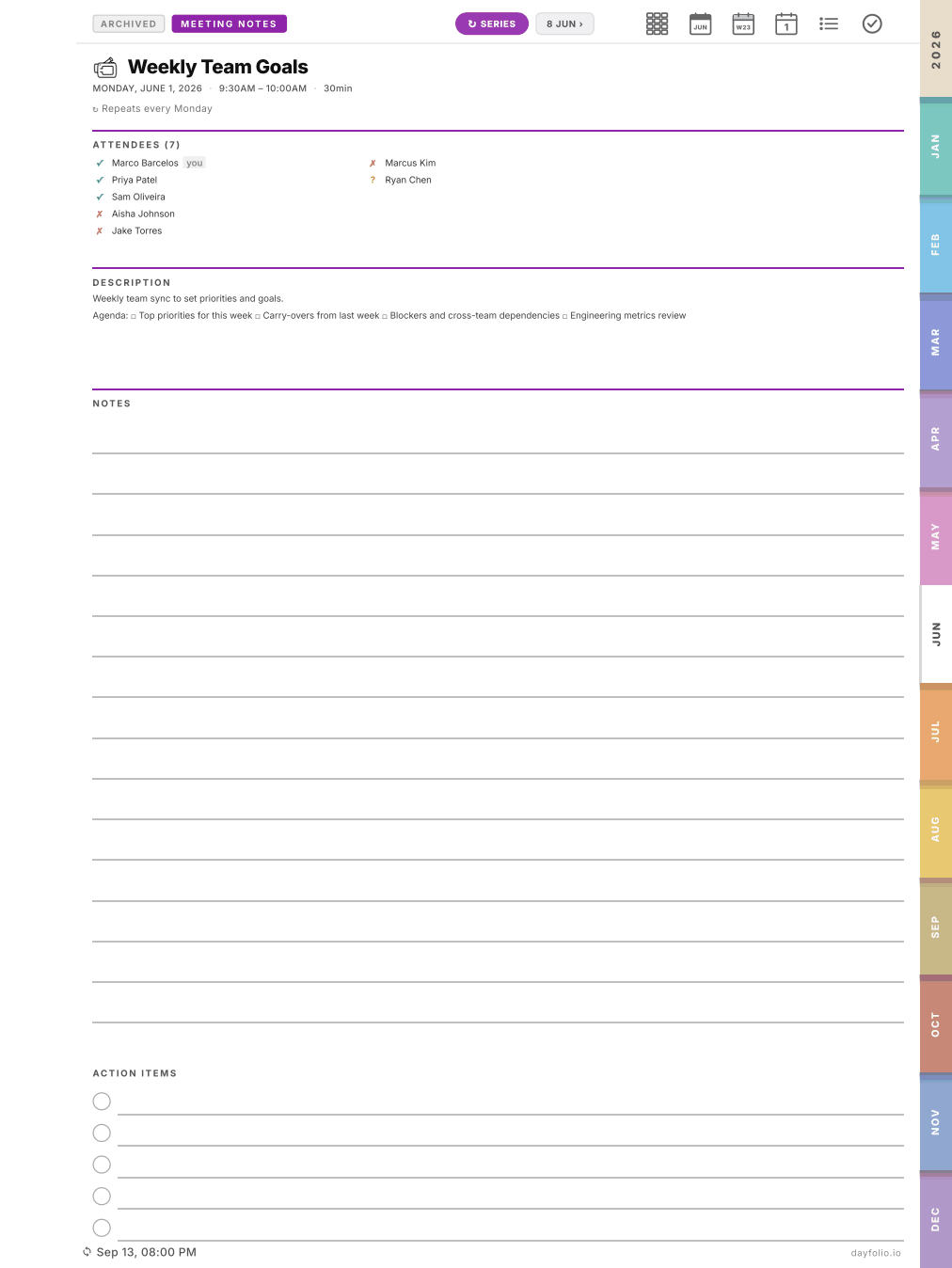
Header icons behave differently here
On a Meeting Notes page the Month, Week and Day icons point to the date of the meeting, so you can jump from your notes to that day's schedule. See Navigating the planner: finger vs. pen, header icons and badges.
Need more space?
Tap the ⋮ menu (three dots) on your reMarkable and choose Add note page to insert as many blank pages as you like right after the notes page. They survive every sync. See Add extra pages to a meeting.
Which meetings get a page, and how far ahead
That's controlled in Step 7 — Meeting notes: Smart detection or all timed events, and a window of 2 or 4 weeks ahead. The full details live in the Meeting Notes collection.
On the Paper Pro Move
Meeting Notes pages on the Move are taller than the screen — scroll down for the rest of the notes area and the action items.