Tasks on the Day View: placement, order and lines
The To Do List on every Day View has 10, 15 or 20 lines. App tasks due that day fill the top lines; the rest are yours to write on.
Which tasks land on a day
A task appears on the Day View of its due date (its date in Google Tasks). Tasks without a date are listed in the Tasks Index only. A task from a list or project you don't want on paper is best archived or kept undated in the app.
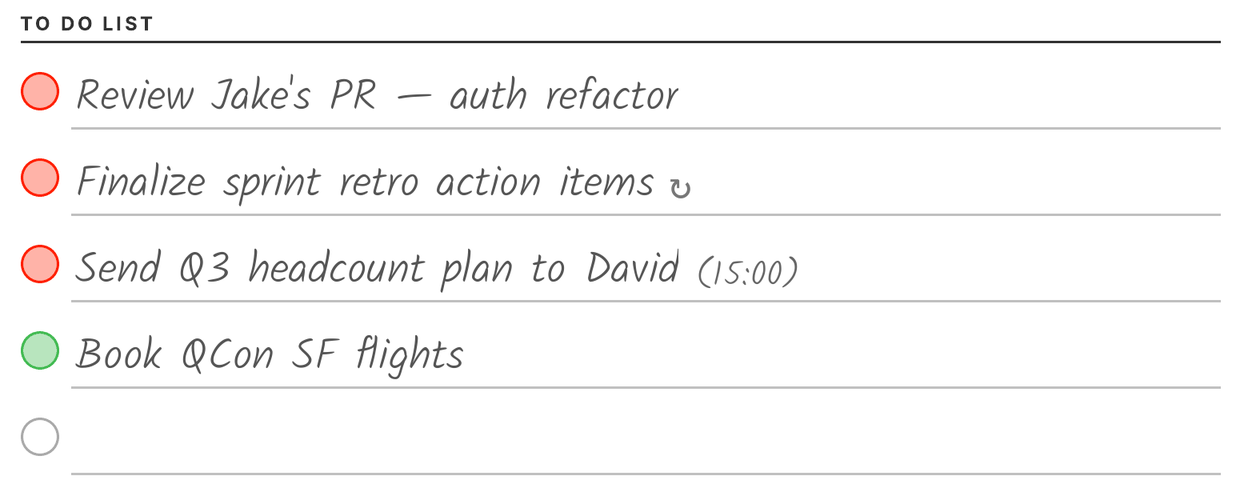
Next to each task: the list or project it belongs to, ↻ when it repeats, and its scheduled time in parentheses. The circle is red while the task is open and green once it's completed.
Order
The first time a day is generated, tasks are sorted by priority: Todoist P1 → P4, Microsoft To Do High → Normal → Low (Microsoft Planner tasks follow the same order as Microsoft To Do), then Google Tasks in their list order. Two tasks with the same priority are ordered Todoist, Google Tasks, Microsoft To Do. Set priorities in your app before the day's first sync and the page comes out in that order.
A task keeps its line
The planner is made for handwriting, so once a task has been placed on a line — on today's page or a past one — it stays on that line through every sync, even if you re-prioritize it, move its date or delete it. That way a check or a note you wrote next to it always stays next to the right task. Consequences worth knowing:
A task you add or re-prioritize during the day takes the next free line, rather than jumping to the top.
Future days aren't locked: they re-sort with your latest priorities until they become today.
A completed task stays on the day it was completed, in green, as a record of what you did.
A task deleted or moved to another day after it was placed can leave an empty line on the old day; the next syncs clear such lines.
Dayfolio never places a task on a line that already contains handwriting.
If you want today's page rebuilt from scratch with the current priorities, disconnect the task app in Step 8, press Sync now, connect it again and sync once more. Tasks you had already checked off by hand are kept.
More lines
Ten lines suit most days. If your days regularly have more tasks, choose 15 or 20 task lines in Step 4 — the Notes area gets shorter to make room. See Day, Week & Month View settings. Tasks beyond the available lines are still in the Tasks Index.
Check with the Live Preview
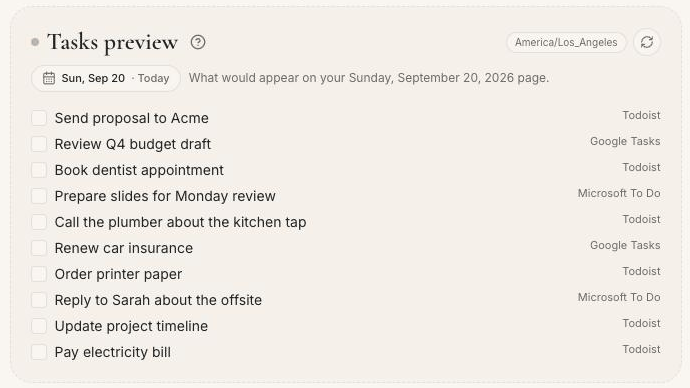
Below the task app cards in Step 8, the Tasks preview lists the tasks that would appear on any day of this week or next, with their source app. If a task is missing there, it has no due date in the app (or the app isn't connected); if it's there but not on the tablet, the planner hasn't synced since — see Tasks missing, on the wrong day, or not completing.