
Reached a blank "Reserved page"? Your planner is still there
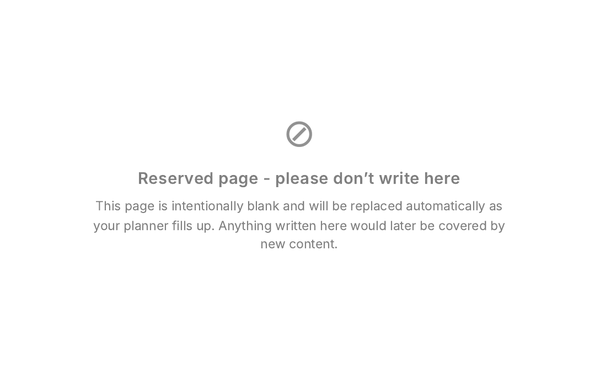
If you swipe or jump far enough toward the end of the planner, you'll reach blank pages that read "Reserved page - please don't write here". Nothing is missing and nothing was lost — you've simply gone past the last real page. Everything you wrote is still where you wrote it.
How to get back
Tap the four-squares icon in the reMarkable toolbar, choose Go to page and enter 2 (the Year View), then tap the current month — or use Go to page with a page number you know. The Navigating the planner article covers every way of moving around.
Why the reserved pages exist
reMarkable keeps its own index of the pages of a PDF. When a document grows or shrinks between versions, that index can get out of step — pages appear duplicated, or a link opens the wrong page. To avoid that, Dayfolio keeps a fixed number of spare pages at the end and fills them in as new pages are needed (new Meeting Notes pages, for example), instead of appending pages to the file. Your planner keeps the same page count from one sync to the next, so every page — and your handwriting on it — stays exactly where it is.
A few things to keep in mind:
Don't write on them. A reserved page will be replaced by real content at a later sync, and handwriting left on it would then sit on top of that page.
Don't delete or move them in the reMarkable page overview; they're what keeps the page structure stable.
Over the year they gradually turn into real pages. That's the plan working as intended.
If links ever do stop working or pages look duplicated, the fix is the Repair planner index tool on your planner page — see Repair planner index.