
Connecting Google Calendar
Google Calendar is connected with a Google sign-in, after which every calendar in that account is available to include in your planner.
Connect
Open your planner at app.dayfolio.io → Change calendar (or Edit settings → Step 6).
In the Google Calendar card, press Connect and choose the Google account.
Review the permissions and allow them. Dayfolio asks for read-only access to your calendars, your basic profile (to show which account is connected) and offline access (so the daily sync can run without you signing in again). Google has reviewed the Dayfolio integration, so the consent screen is the standard one.
Back in Step 6, the card shows Connected and Connected as your address, followed by the list of calendars.
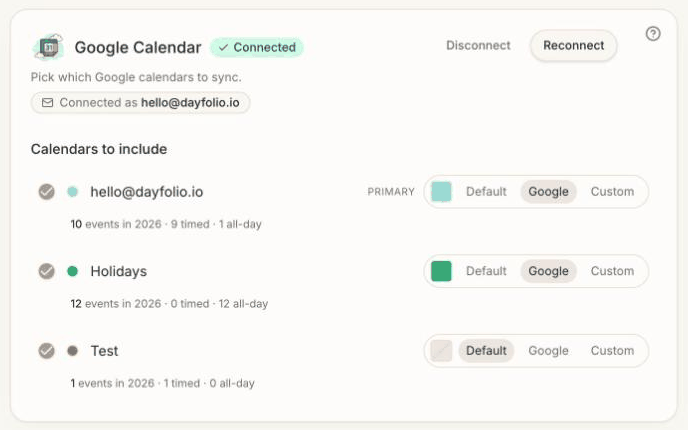
Choose the calendars to include
All calendars of the account are listed — the primary one (marked PRIMARY), the calendars you created, calendars shared with you and subscriptions such as Holidays. Under each name Dayfolio shows how many events it holds this year, split into timed and all-day, which helps you spot a calendar that's empty or that you don't need.
Check the calendars you want in the planner and uncheck the rest. The change is saved immediately; press Sync now to regenerate the planner.
Choose the colors
Next to each calendar:
Default — the current month's accent color.
Google — the color the calendar has in Google Calendar (recommended if you already color-code your calendars).
Custom — any hex color you like.
Details and tips in Calendar colors and hiding events.
Google Workspace accounts
Work accounts connect the same way. If your Workspace administrator has set a maximum session length for third-party apps, the connection can expire after a while; Dayfolio emails you when that happens and the card in Step 6 is highlighted. Press Reconnect and you're back — see Reconnecting a calendar that stopped updating.
If your organization requires admin approval for third-party apps, ask your Workspace administrator to allow Dayfolio in the Google Admin console (Security → Access and data control → API controls). Dayfolio's Google integration is verified by Google.
A second Google account
One Google sign-in is connected per planner. To add calendars from another Google account, use its iCal link: in Google Calendar on the web, open that calendar's settings, copy the Secret address in iCal format, and add it in Step 6 under iCal/.ics feeds. See Adding a calendar with an iCal/ICS link.
Disconnect vs. Reconnect
Reconnect refreshes the authorization and keeps your calendar selection and colors.
Disconnect removes the connection and clears its settings; if you connect again later, all calendars start selected and you pick them again.