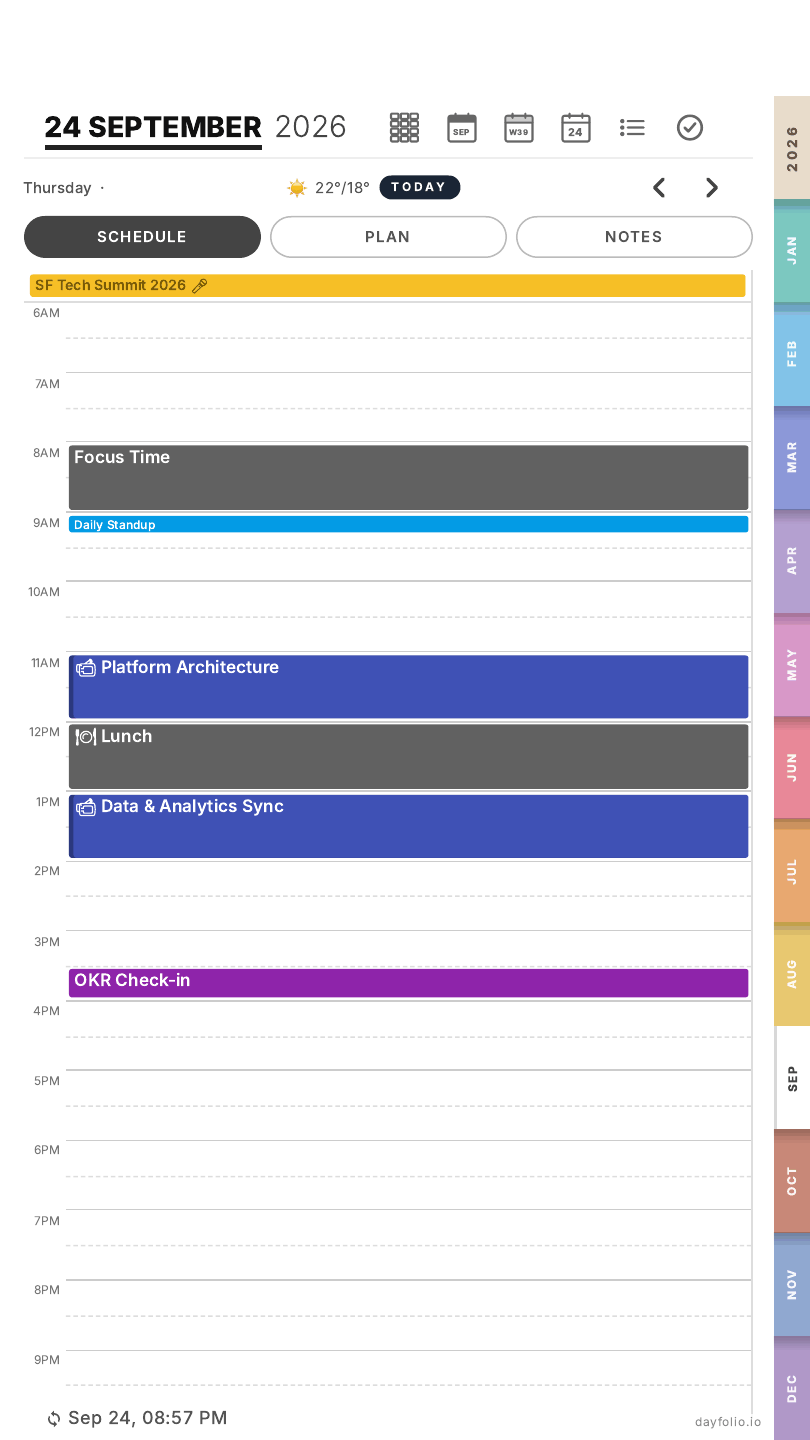
Day View
The Day View is where most of the daily work happens. There is one page per day for the whole year (on the Paper Pro Move it's split into three tabs: Schedule, Plan and Notes).
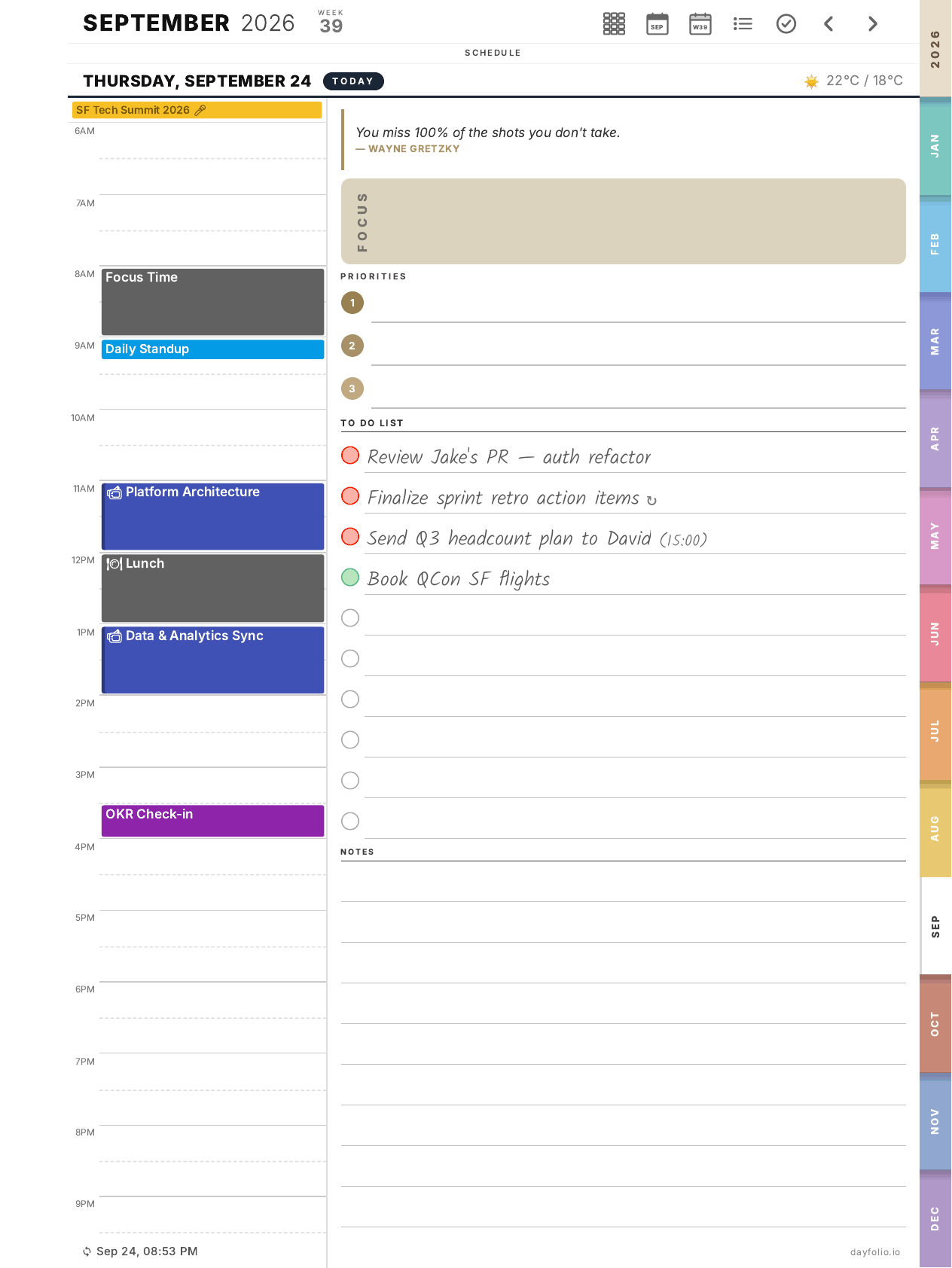
Schedule (left column)
Your calendar events are drawn hour by hour, between the start and end hours you chose in Step 4 — Day, week & month view (events outside that range don't appear, so widen it if you have early or late events).
Events use the color of their calendar (or the color you assigned in Calendar Setup).
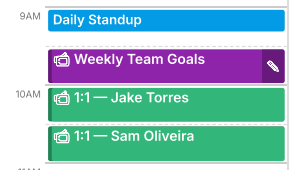
An event with a camera icon has a Meeting Notes page — tap it with your finger to open it.
A small pencil on an event means its notes page already contains handwriting.
A struck-through event with an outline is an invitation you declined (it stays visible, like in Google Calendar).
Overlapping events are shown side by side.
Quote, Focus and Priorities
A short quote at the top of the right column.
Focus — a shaded box for the one thing that matters today.
Priorities — three numbered lines.
These are for handwriting.
To Do List
Tasks with a due date from Todoist, Google Tasks, Microsoft To Do or Microsoft Planner are placed here automatically, one per line, highest priority first. Empty lines are yours for handwritten tasks.
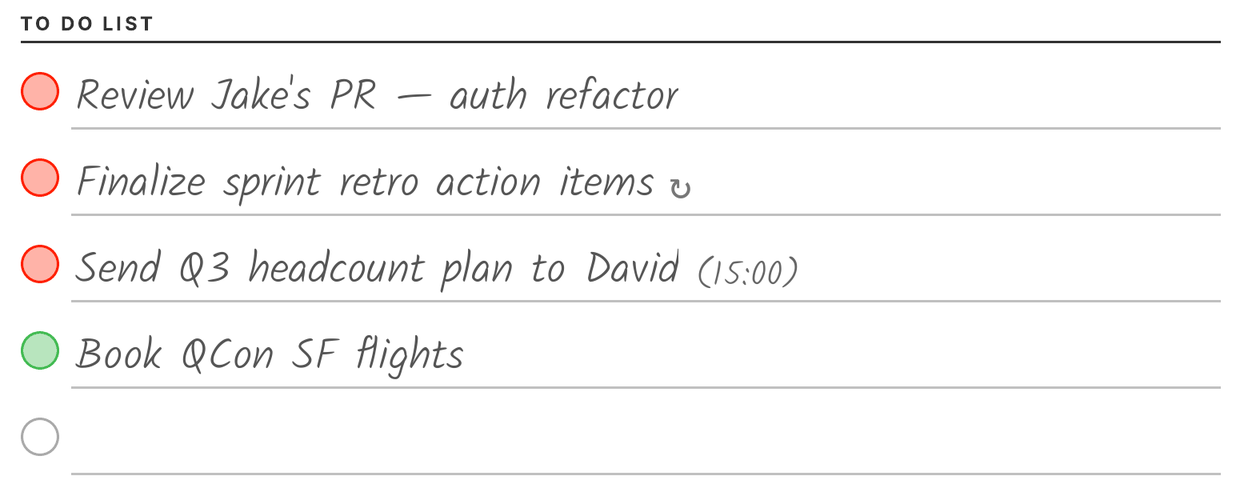
Red circle — open task. Green circle — completed.
↻ marks a recurring task; a time in parentheses is the task's scheduled time.
Draw a check inside the circle with your pen and, on the next sync, the task is completed in your task app. Erase it to reopen. See Completing a task with your pen.
You can choose 10, 15 or 20 task lines per day in Day, Week & Month View settings; more lines mean less space for Notes.
Notes
Lined space at the bottom for anything else. Need more room? Add a blank page after this one from your reMarkable — see Add a note page anywhere in your planner.
Weather and footer
The day's forecast (high/low) sits next to the date when weather is enabled. The footer shows when the planner was last generated.
On the Paper Pro Move
The same content is split into three tabs at the top of the page — Schedule, Plan (quote, Focus, Priorities, To Do List) and Notes — each on its own page, so nothing is shrunk to fit the smaller screen.