
Tasks in your planner: an overview
Connect a task app and your to-dos are printed on the planner: every task with a due date lands on that day's To Do List, and a check drawn with your pen completes it in the app at the next sync. Everything is set up in Step 8 — Connect your tasks (from your planner page: Task settings). It's optional — the To Do List works as handwritten lines without any app.
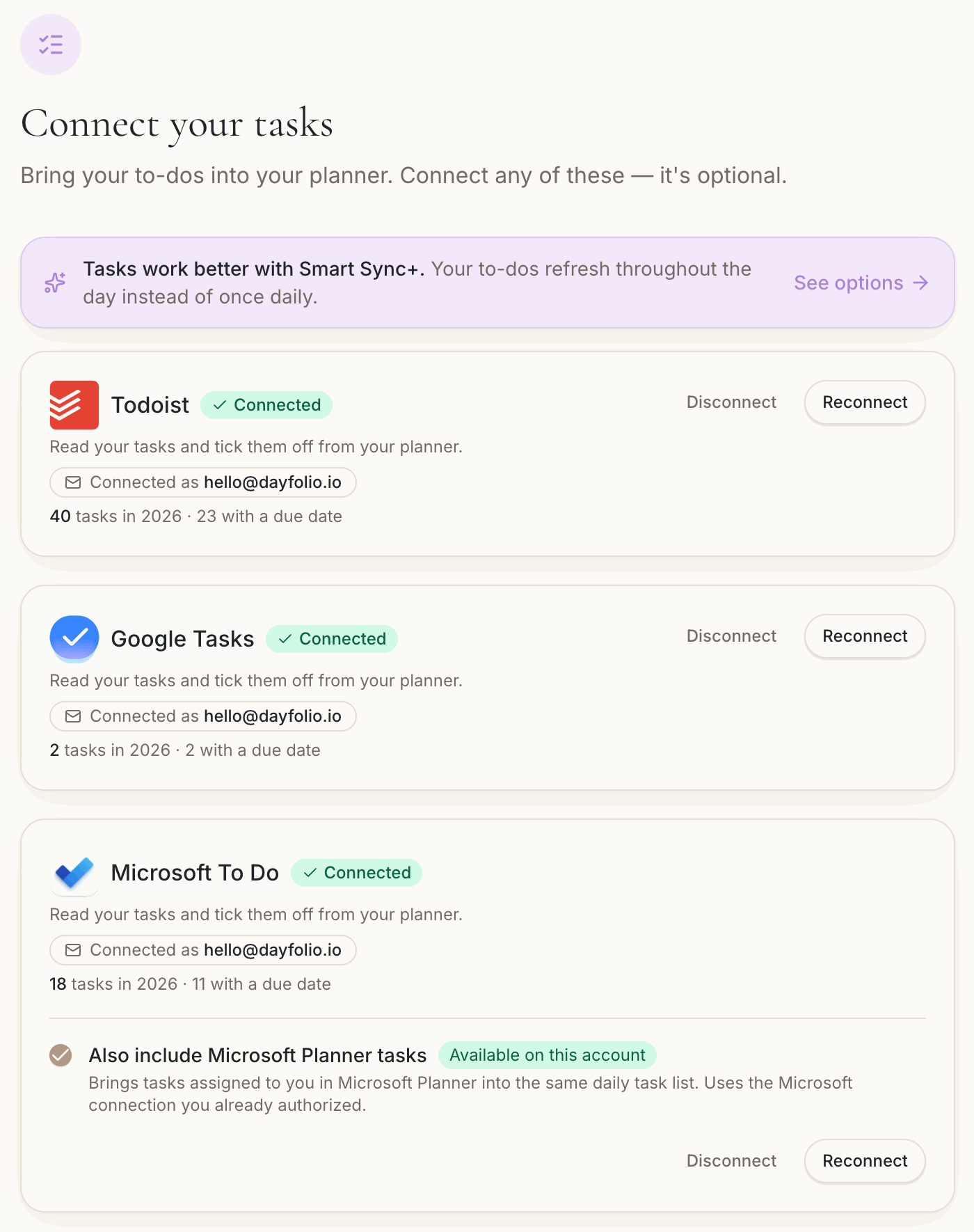
Supported apps
Todoist — every active task from every project, with project name and color, priority and labels. See Connecting Todoist.
Google Tasks — all your lists. See Connecting Google Tasks.
Microsoft To Do — all your lists, personal or Microsoft 365. See Connecting Microsoft To Do.
Microsoft Planner — the tasks assigned to you, as an option of the Microsoft To Do connection on accounts that have Planner. See Connecting Microsoft Planner.
One account per app, and all apps can be connected at the same time — for example Google Tasks with your personal account and Microsoft To Do with your work account; tasks from all of them share the same To Do List. Two accounts of the same app (a personal and a work Google Tasks, say) can't be connected to one planner. The account you connect doesn't need to match the email of your Dayfolio account.
What you get
Tasks on the right day — a task with a due date appears on that Day View, one per line, highest priority first, with a red circle while open. Tasks without a due date are listed in the Tasks Index instead. See Tasks on the Day View: placement, order and lines.
Complete with your pen — draw a check inside the circle; at the next sync the task is completed in your app and turns green. Erase the check to reopen it. See Completing a task with your pen.
Move unfinished tasks to today — yesterday's open tasks are carried to today's page and re-dated in your app. See Move unfinished tasks to today.
Tasks Index — all tasks from all apps, by Today / Overdue / This Week / Inbox / Logbook, by list and by source. See Tasks Index.
Month View progress — each day shows tasks completed out of tasks due (2/5).
Email notifications — a message after each sync that completed or reopened tasks, and an optional daily summary. See Task email notifications.
What Dayfolio needs from the app
Tasks are created in the app, not on the tablet — Dayfolio reads them and writes back only their completion and, if you turn on Move unfinished tasks to today, the new due date of the tasks it carries forward. That's why the task connections ask for read-and-write access, unlike the calendar connections, which are read-only.
When tasks are refreshed
Tasks are read and checks are processed at every sync: the daily automatic one, Sync now, and, if you add the optional Smart Sync+, several more times a day, so a check reaches your app sooner. See Completing a task with your pen.
Some customers bring in tasks from an app Dayfolio doesn't connect to, or from a second account, by adding its iCal feed in Step 6 like a calendar. It works, but we don't recommend it: the tasks show up as all-day events until you complete them in the app, they can't be checked off from the planner, and they aren't listed in the Tasks Index.