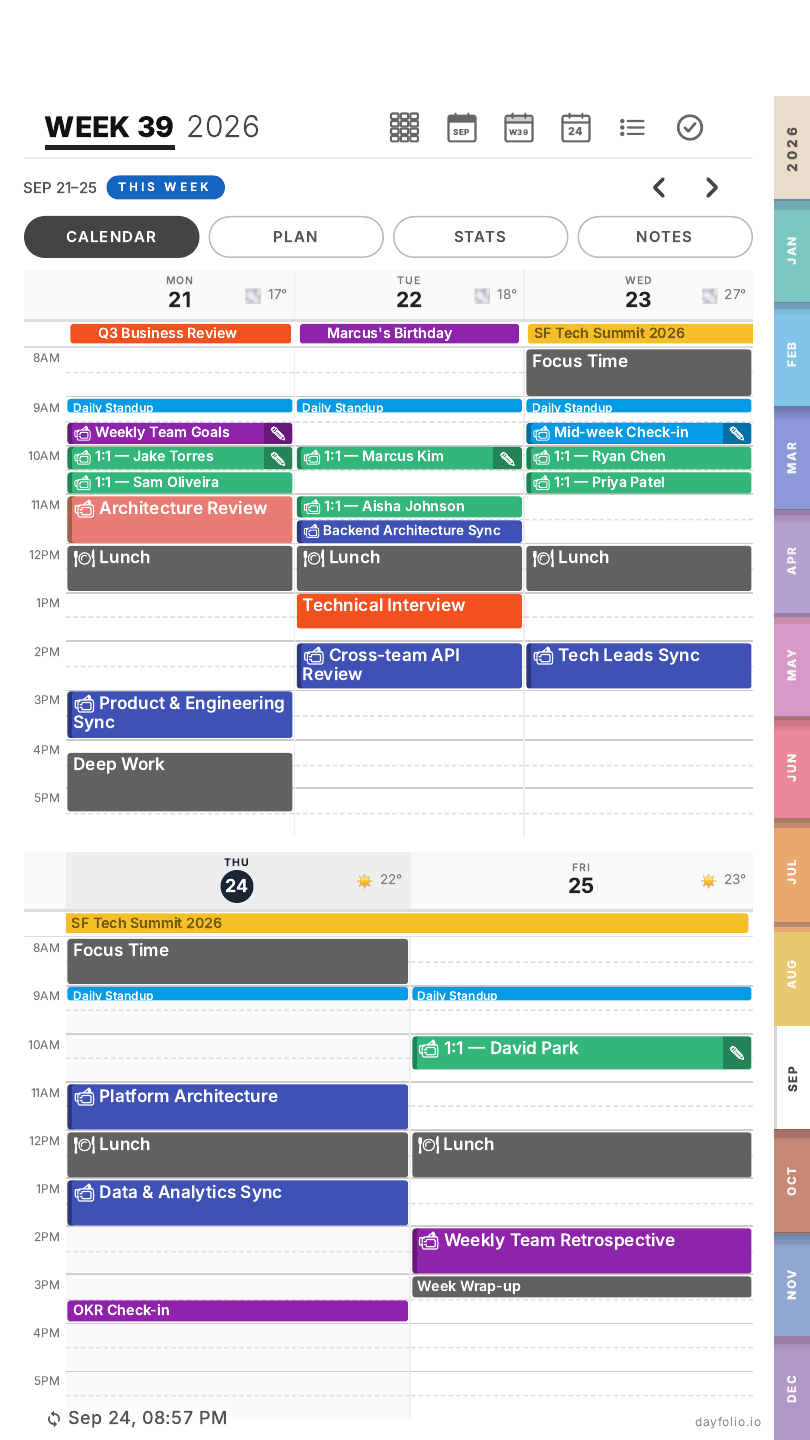
Week View
The Week View gives you the whole week on one page (four tabs on the Move: Calendar, Plan, Stats and Notes). Tap a day number to open that Day View.
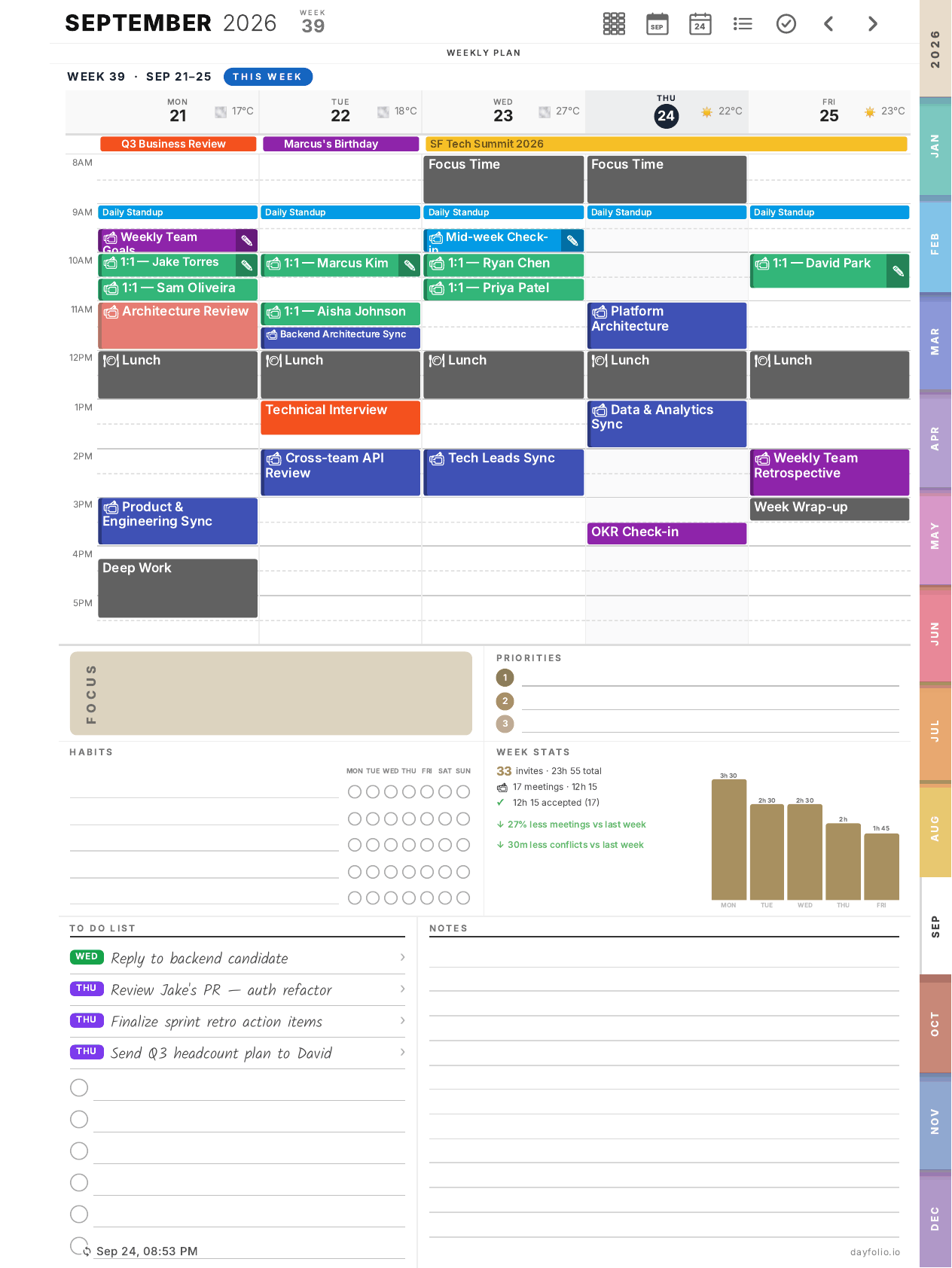
Weekly plan
The top half is a time grid with your events for each day, drawn the same way as on the Day View: calendar colors, a camera icon for meetings with a notes page, a pencil when that page has handwriting, strike-through for declined invites. Each day header shows the date and the weather.
You choose in Step 4 — Day, week & month view whether the grid shows the workweek (Mon–Fri) or the full week.
Focus, Priorities and Habits
Focus and Priorities work like on the Day View, but for the week.
Habits is a small tracker: write a habit on each line and tick the circle for each day you did it (Mon → Sun).
Week Stats
A quick read on how the week looks in your calendar:
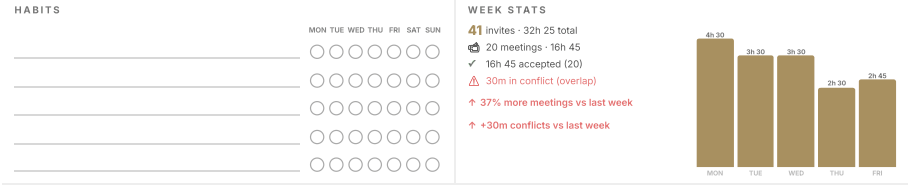
how many invites and meetings you have, and the total hours;
how much of it you've accepted;
time in conflict (overlapping meetings);
how it compares with last week;
a small bar chart with meeting hours per day.
Stats are recalculated on every sync.
To Do List
Tasks due this week appear here with a day badge (MON, THU, FRI…). Each line is a link: tap it to open that day's Day View, where you can tick the task off. The list on the Week View itself is for reading and planning; completion happens on the Day View.
Notes
Lined space for the week. As anywhere else in the planner, you can add extra blank pages from your reMarkable if you need more room.
On the Paper Pro Move
The Week View is split into four tabs: Calendar (the grid, with the days stacked in two rows), Plan (Focus, Priorities, To Do List), Stats (Habits and Week Stats) and Notes.