
Adding a calendar with an iCal/ICS link
Any calendar that can be shared as a public iCal / .ics subscription link can be added to your planner — as many links as you like, next to your Google and Microsoft connections.
Add a feed
In your calendar service, copy the calendar's iCal (ICS) subscription URL — the per-service steps are below.
Open your planner at app.dayfolio.io → Change calendar (Step 6), and in the iCal / .ics feeds card press Add ICS source.
Give it a label (optional — "Kids' school", "Work"), paste the URL (
https://…orwebcal://…both work) and press Done.Optionally change its color, then press Sync now.
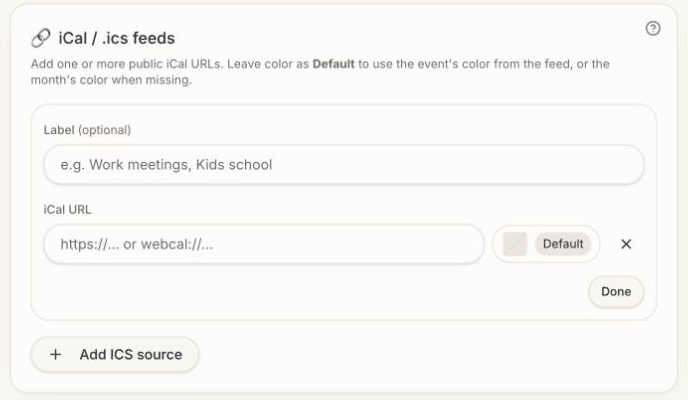
The link must be reachable without a password: a "public" or "secret address" link as generated by the services below. Dayfolio fetches the feed at every sync, so changes in the source calendar appear at the next regeneration.
Where to find the link
Apple Calendar / iCloud — on iCloud.com → Calendar, click the share icon next to the calendar, turn on Public Calendar and copy the link. Repeat for each iCloud calendar. Calendars stored only on a device (not in iCloud) don't have a link, so move them to iCloud first.
Outlook.com / Microsoft 365 — Settings → Calendar → Shared calendars → Publish a calendar, choose the calendar and the detail level, press Publish and copy the ICS link. Handy when your organization doesn't allow the Microsoft sign-in, or for a second Microsoft account.
Google Calendar (second account) — in Google Calendar on the web, open the calendar's settings and copy the Secret address in iCal format. Your main Google account is better served by the Google connection.
Cozi — share the calendar as an iCal link from Cozi's settings. If the feed includes entries you don't want (birthdays, for example), hide them by keyword — see Calendar colors and hiding events.
Nextcloud and other CalDAV servers — share the calendar with a public link and use its iCal export URL. Dayfolio reads the public link; CalDAV accounts themselves aren't connected directly.
School, sports and team calendars — most publish an "Add to calendar" or "Subscribe" link; that link is what you paste.
What a feed carries into the planner
Every feed brings the essentials: event titles, dates and times, all-day and multi-day events, and recurring events on their correct dates. How much more comes through depends on what the service puts in the feed:
Attendees and video-conference links — native Google and Microsoft connections always deliver them; many published feeds (iCloud, Outlook on the web) don't. Meeting Notes pages still work: attendees are listed when the feed includes them, and if your feed omits them, set Step 7 — Meeting notes to create pages for all timed events so no meeting is missed. See Smart detection or all timed events?.
Colors — feeds rarely carry colors, so ICS calendars use the month's accent color by default. Give each feed its own Custom color to tell them apart.
Recurring series — occurrences are printed on their dates in every view. The Series page that groups a recurring meeting's occurrences relies on the stable series ID the Google and Microsoft connections provide; feeds that include it are grouped as well.
Removing a feed
Press the × next to the feed in Step 6 and press Sync now. Its events disappear at the next regeneration; your handwriting on those days stays where it is.