
Connecting Microsoft Planner
Tasks assigned to you in Microsoft Planner can appear in your planner alongside your other tasks. There's no separate connection to set up: Planner is an option inside the Microsoft To Do card in Step 8, and it uses the Microsoft account you already connected there.
Turn it on
Connect Microsoft To Do first, with the Microsoft account you use for Planner — see Connecting Microsoft To Do.
Open your planner at app.dayfolio.io → Task settings (or Edit settings → Step 8).
In the Microsoft To Do card, tick Also include Microsoft Planner tasks.
Press Sync now.
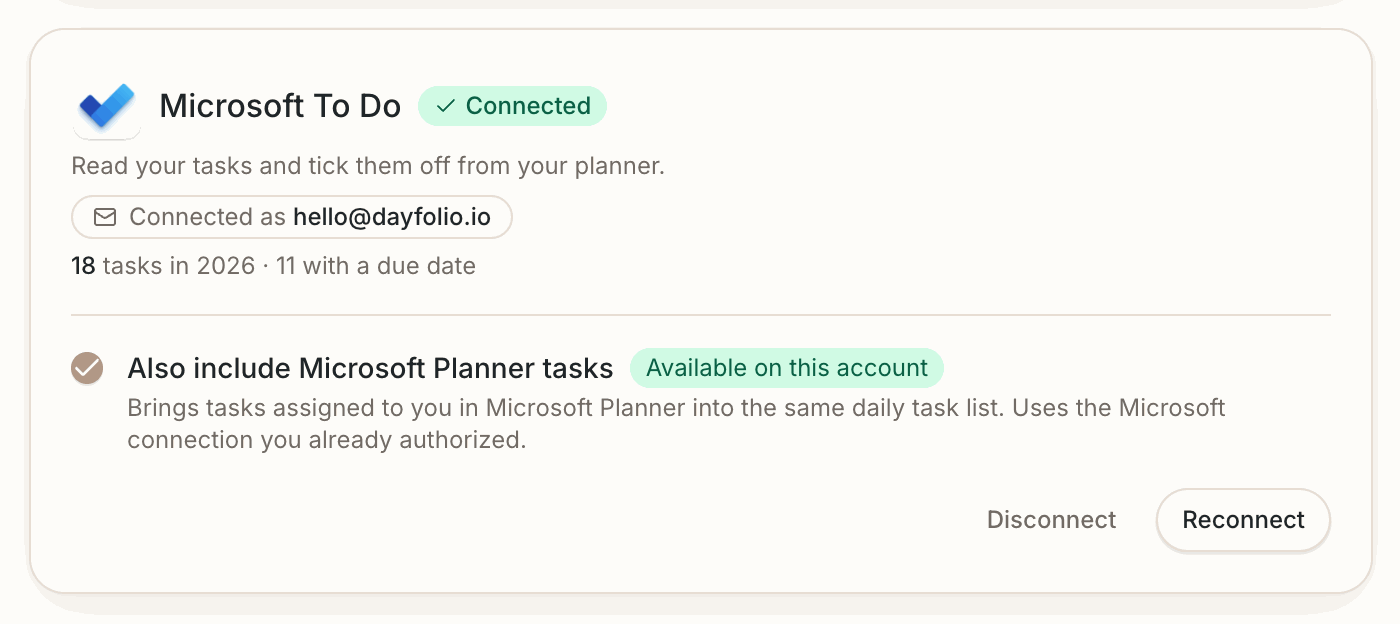
If you're connecting Microsoft To Do for the first time, the option shows up in the same card as soon as the connection is made. If Microsoft To Do was already connected, you'll find the checkbox in the card — nothing needs to be reconnected.
What comes in
The tasks assigned to you in Microsoft Planner join the same daily task list as your Microsoft To Do tasks — and your Todoist or Google Tasks tasks, if those are connected too. From there they're shown in the planner like the rest of your tasks; see Tasks in your planner: an overview.
Don't see the option?
Whether Planner is available depends on the Microsoft account you connected. Planner usually comes with work or school Microsoft 365 accounts; some accounts, personal Microsoft accounts in particular, don't have access to Planner, and then the option isn't offered. When it is, the card says Available on this account.
The option covers the account connected in the Microsoft To Do card. If your Planner tasks live in a work account but you connected a personal one, press Disconnect, then Connect and pick the work account (choose Use another account if Microsoft signs you in automatically).
Some of my Microsoft tasks are missing
Often, the missing tasks belong to Microsoft Planner, not Microsoft To Do. Microsoft To Do can show Planner tasks in its Assigned to me list, so they look like To Do tasks — but they're stored in Planner.
In Step 8, check the Microsoft To Do card for Also include Microsoft Planner tasks and tick it.
Press Sync now.
If the option isn't there, see Don't see the option? above — the connected account may not have Planner, or it may be a different account from the one your tasks are in.
For tasks that still don't show up, go through Tasks missing, on the wrong day, or not completing.