
Full-size vs. Move layouts
Dayfolio has two layouts, one per screen size. They contain the same things — the four views, Meeting Notes pages, the indexes — arranged for the page they're printed on.
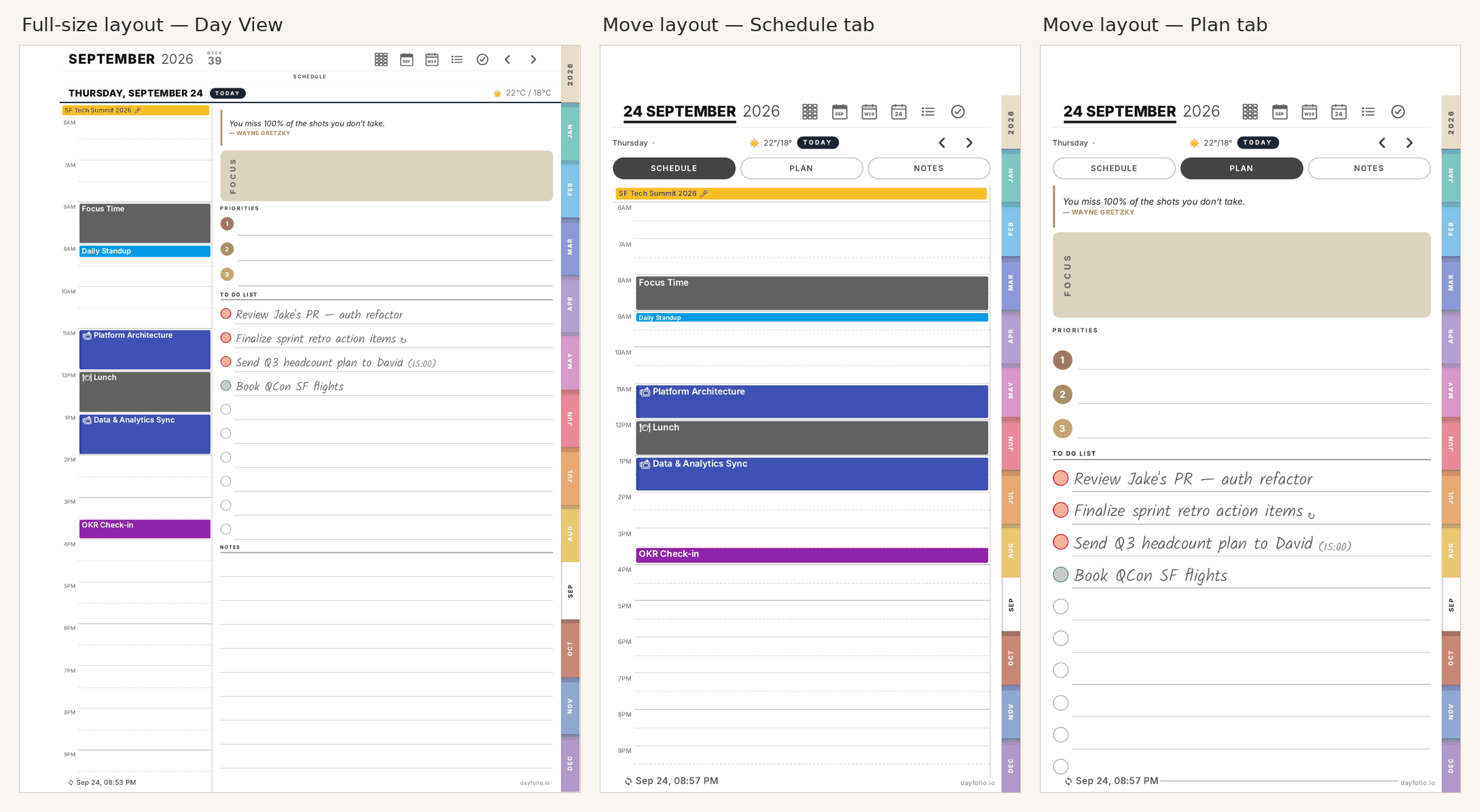
Full-size layout
For the Paper Pro, reMarkable 2, Paper Pure and reMarkable 1. Each view is one page: the Day View has the schedule on the left and Focus, Priorities, To Do List and Notes on the right; the Week View has the week grid on top and the planning blocks below; the Month View is a grid with a notes column. Month tabs run down the edge of every page.
Move layout
For the Paper Pro Move. The narrower page is split into tabs at the top, so each part gets the full width:
Day View — Schedule, Plan (quote, Focus, Priorities, To Do List) and Notes tabs.
Week View — Calendar, Plan, Stats and Notes tabs.
Month View — Calendar and Notes tabs.
Meeting Notes pages are taller than the screen; scroll down for the rest of the notes area and the action items.
Everything else is the same: finger taps follow links, the pen writes, tasks are checked off in the circles, and settings, calendars and tasks are configured identically. The Move layout is a design of its own; no zooming is needed on the Move. See Day View, Week View and Month View for the Move sections of each.
Choosing and switching
The format is chosen in Step 1 — Name & appearance when a planner is created. To change it later, open your planner page at app.dayfolio.io; the Use this on Move too card (or its full-size counterpart) offers two paths:
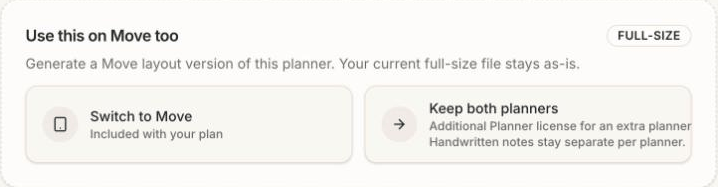
Switch to Move — regenerates this planner in the other layout, included with your plan. The tablet receives a new document; the previous file stays on the tablet with its handwriting, and stops updating. See Handwriting stays in its planner file.
Keep both planners — adds a second planner in the other layout, with the Additional Planner license, so both keep syncing. Calendars and tasks are set up on each; handwriting is separate per file. See Using Dayfolio on two reMarkable devices.
Using a layout on the other screen
A planner delivered to your reMarkable account opens on any of your tablets. A full-size planner on the Move, or a Move planner on a Paper Pro, doesn't fill the screen by default; Adjust view on the tablet fixes that — see Planner looks narrow, small or cut off.