
Add a note page anywhere in your planner
The planner has a fixed layout, but you're never stuck with the space it gives you. reMarkable lets you insert extra pages into any PDF, and Dayfolio keeps them exactly where you put them.
How to add a page
Open the page after which you want more room — a Day View, a Week View, a Meeting Notes page, anything.
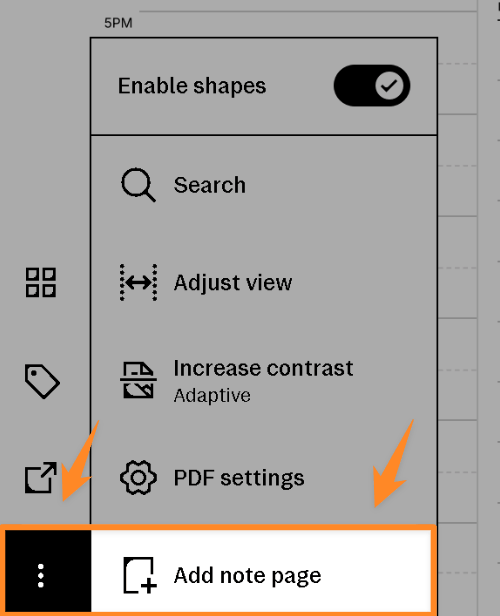
Tap the ⋮ menu (three dots) in the reMarkable toolbar.
Choose Add note page.
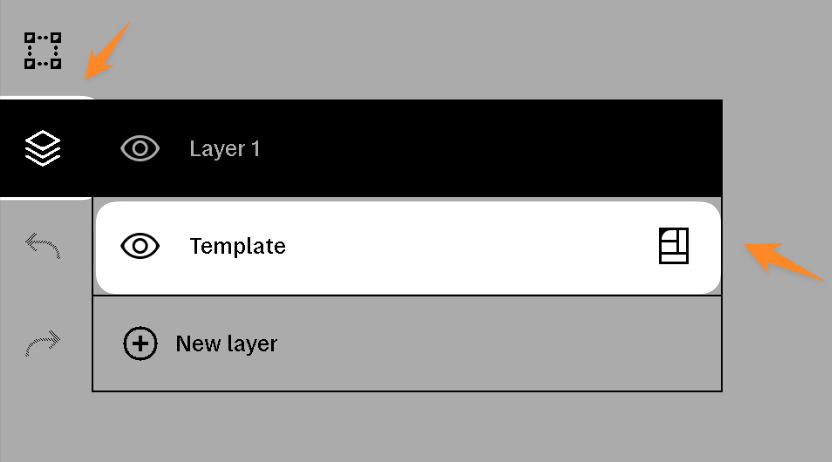
A new blank page appears right after the current one. To give it a template, open Layers in the toolbar and tap the template icon on the Template layer — lined, dotted, grid or blank.
Repeat as often as you like; there is no limit.
What happens on the next sync
Your added pages and everything you wrote on them are preserved. Dayfolio updates the planner around them.
They stay in the same position, so a page you added after Tuesday's Day View is still after Tuesday.
Good to know
Added pages are plain reMarkable pages — they don't get the Dayfolio header, month tabs or links. Use the reMarkable page overview (four-squares icon) or the neighboring Dayfolio page to navigate back.
They live inside this planner file. If you switch to another layout or create a second planner, they stay in the original file. See Handwriting stays in its planner file.
Prefer Add note page over duplicating pages inside the planner. Duplicated pages are exactly what the Repair planner index tool looks for and removes, so a page you duplicated on purpose can be read as a problem to fix — an added note page never is.
Ideas
A lined page after each Day View for journaling.
A grid page after a project's meeting for sketches.
A few blank pages at the end of a week for the weekly review.