
Smart detection or all timed events?
Two modes decide which events get a Meeting Notes page. Both are in Step 7 — Meeting notes; the Live Preview shows the effect of each before you sync.
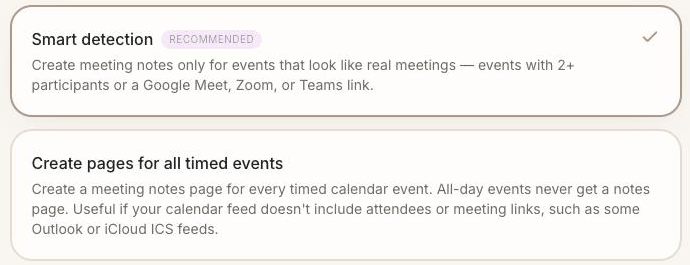
Smart detection
An event is treated as a meeting when at least one of these is true:
it has two or more participants (you and at least one other attendee);
it contains a video-conference link — Google Meet, Zoom or Microsoft Teams — in the event or its description.
Everything else (a solo focus block, "Dentist", "Pick up kids") stays a plain event in the calendar views. This keeps the planner lean and is the right default for calendars connected through the Google or Microsoft sign-in, which deliver attendees and links for every event.
Create pages for all timed events
Every event with a start and end time gets a page; all-day events never do. Choose this when:
your calendar comes in as an iCal/ICS feed that doesn't include attendees (some Outlook and iCloud feeds) — Smart detection then only fires on events with a video link in the description;
events are pushed by a booking or scheduling tool (appointments from a booking page, for example) that doesn't fill in attendees;
you create appointments for yourself in Outlook or Google Calendar and want notes for them;
your work calendar can't be connected directly and you copy the important meetings into a personal calendar — see Notes for meetings that aren't on your calendar.
Keeping "all timed events" tidy
With every timed event getting a page, a busy calendar produces a lot of pages. Two tools keep that in check:
Hide events containing in Step 6 removes events by keyword from the whole planner — no calendar block and no notes page. Add "Lunch", "Focus", "Reminder" or whatever your calendar is full of. See Calendar colors and hiding events.
The 2-week window limits how many upcoming meetings get pages at any time — see How far ahead pages are created (2 or 4 weeks).
A solo appointment under Smart detection
If you'd rather stay on Smart detection and still get a page for one particular event, invite a second address you own to that event; with two participants, it counts as a meeting.
Checking before you sync
Use the Live Preview in Step 7: pick a day, switch the mode, and see which events gain or lose a page. When it looks right, press Sync now.