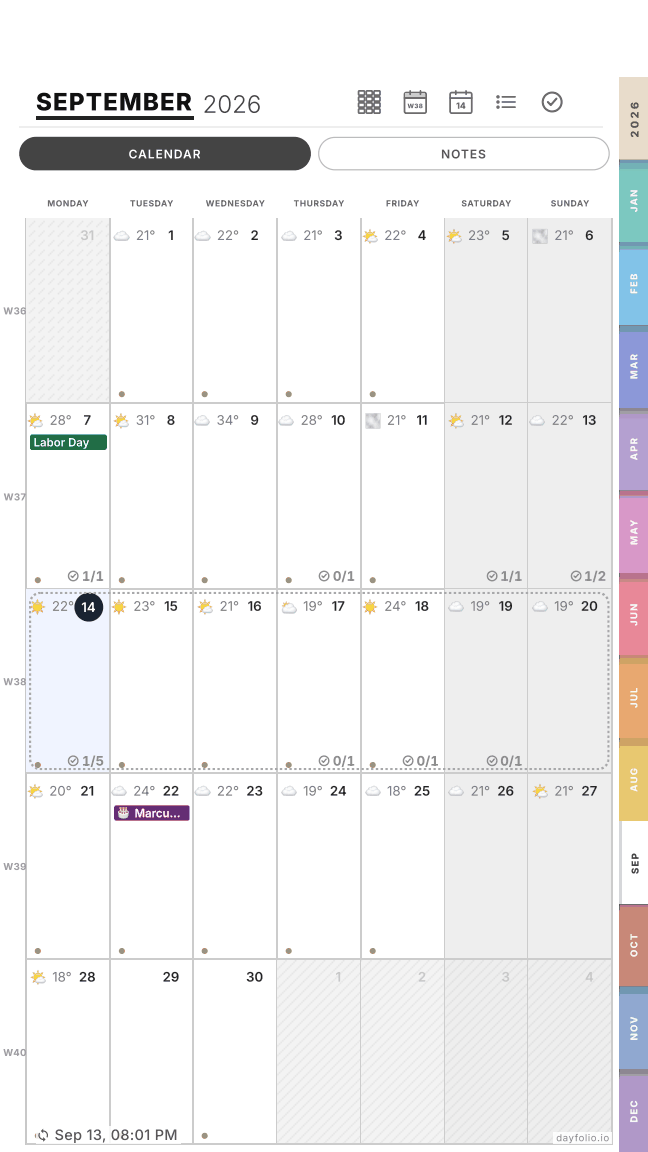
Month View
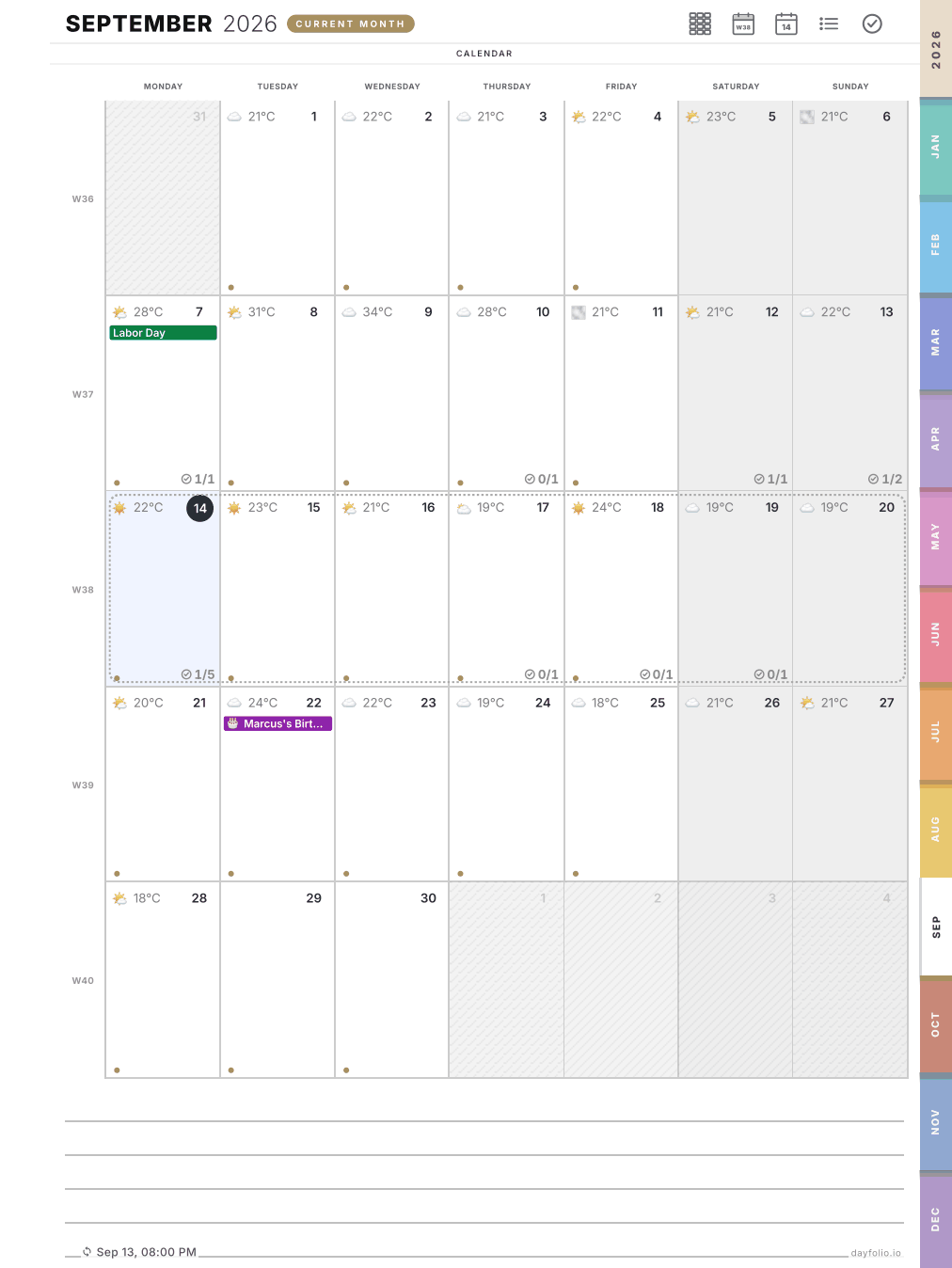
There is one Month View per month. Tap any day number to open that Day View, or a week label on the left (W36, W37…) to open that Week View.
What you see in each day cell
The date and, when weather is enabled, the forecast.
All-day and multi-day events as colored pills (a vacation block spans across its days).
Timed events as small dots — or as pills with the event title, if you turn on Show timed events in Step 4.
Task progress, e.g. 1/5 — tasks completed out of tasks due that day.
Today is highlighted, the current week is outlined, and days from the previous or next month are shaded.
Planning mode vs. Calendar mode
In Step 4 — Day, week & month view you choose the cell style:
Planning mode — shows up to three events per day and keeps white space in every cell for handwritten notes. Good if you use the month page to plan.
Calendar mode — no limit on events; the cell fills with whatever is on your calendar. Good if you use the month page to see everything.
Notes
The lines under the grid are free space — a good spot for monthly goals.
Why a timed event shows on the Day View but not here
By default, timed events are only a dot on the Month View to keep it readable. If you want titles, enable Show timed events in Step 4 and sync. See also How calendar events appear in each view.
On the Paper Pro Move
The Month View has two tabs: Calendar (the grid) and Notes (a full page of lines).