
Day, Week & Month View settings
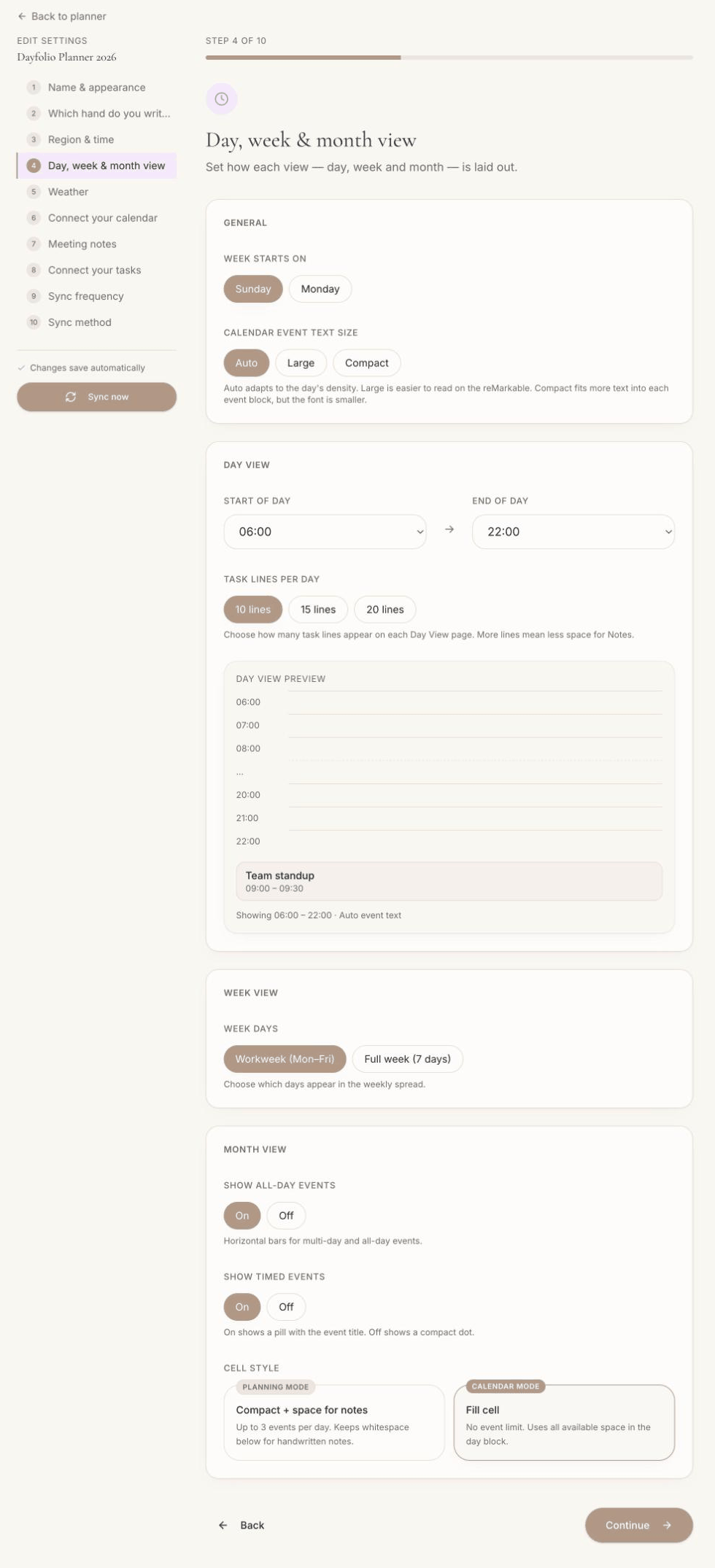
Step 4 — Day, week & month view is where you shape the three main views. Each option below says what it changes and where to see the result.
Week starts on
Sunday or Monday. Affects the column order of the Week and Month Views and of the mini calendars on the Year View.
Calendar event text size
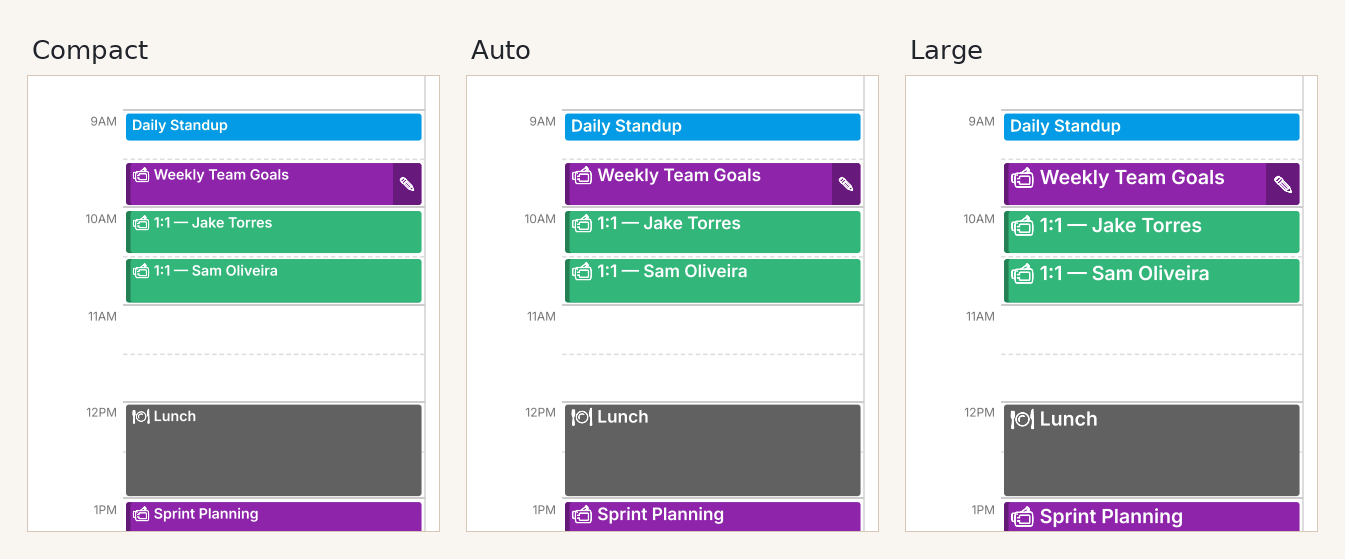
How event titles are sized in the Day and Week schedules:
Auto (recommended) — Dayfolio picks the size per event: larger for long meetings with short titles, smaller where space is tight. Very short events (5–15 minutes) still get a minimum block height so the title is readable.
Large — a fixed, larger size. Easier to read; long titles get truncated sooner.
Compact — a fixed, smaller size. Fits more text per event.
Day View
Start and end hours — the range of the hourly schedule. Events outside it don't appear on the Day View, so include your earliest and latest regular events. A narrower range gives each hour more height.
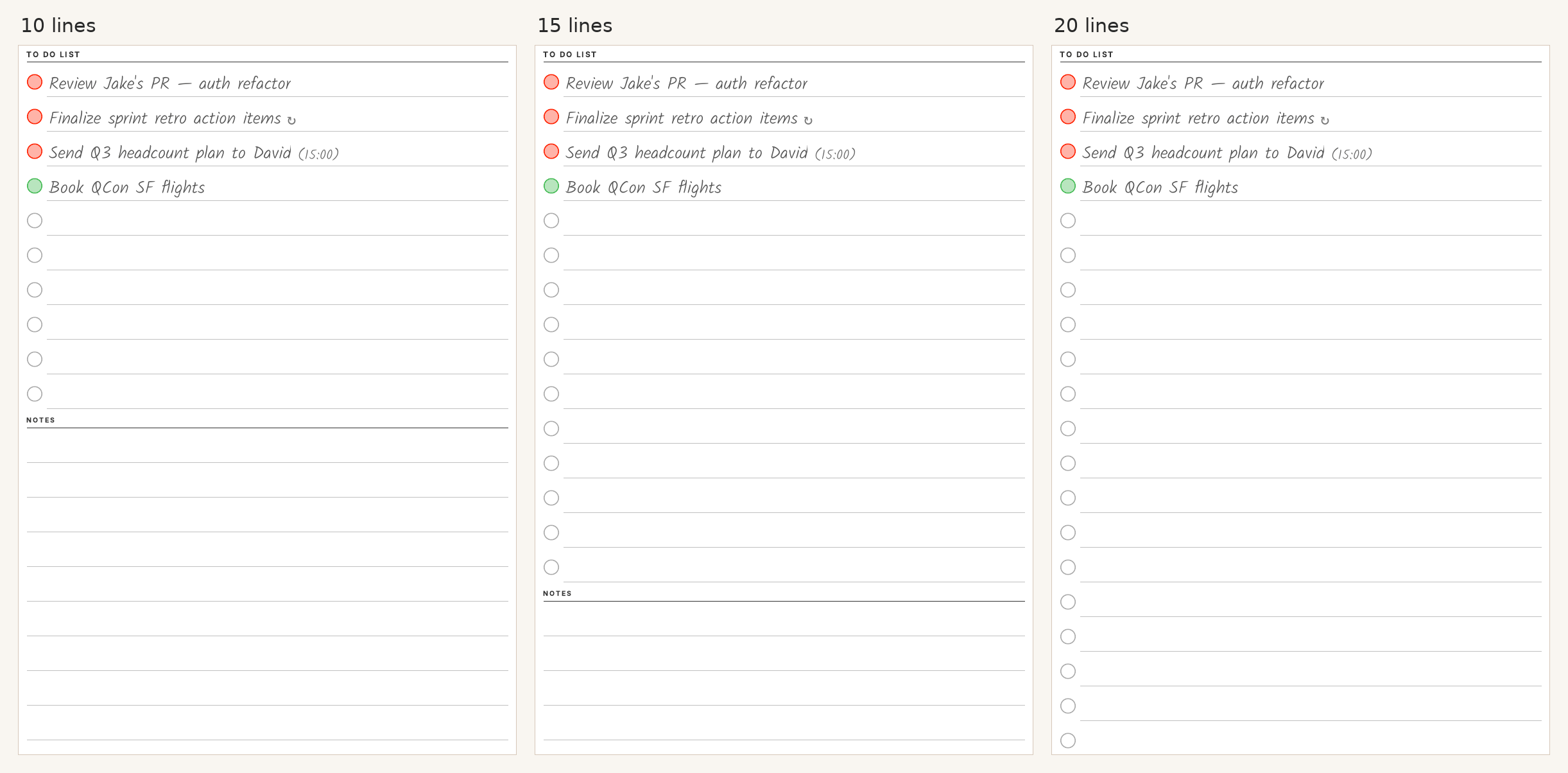
Task lines: 10, 15 or 20 — how many lines the To Do List has. Tasks from your task apps fill the top lines; the rest are for handwriting. More lines mean a smaller Notes area, because the page has a fixed height. Choose the count that matches a typical day; for the occasional overflow, add a note page.
Week View
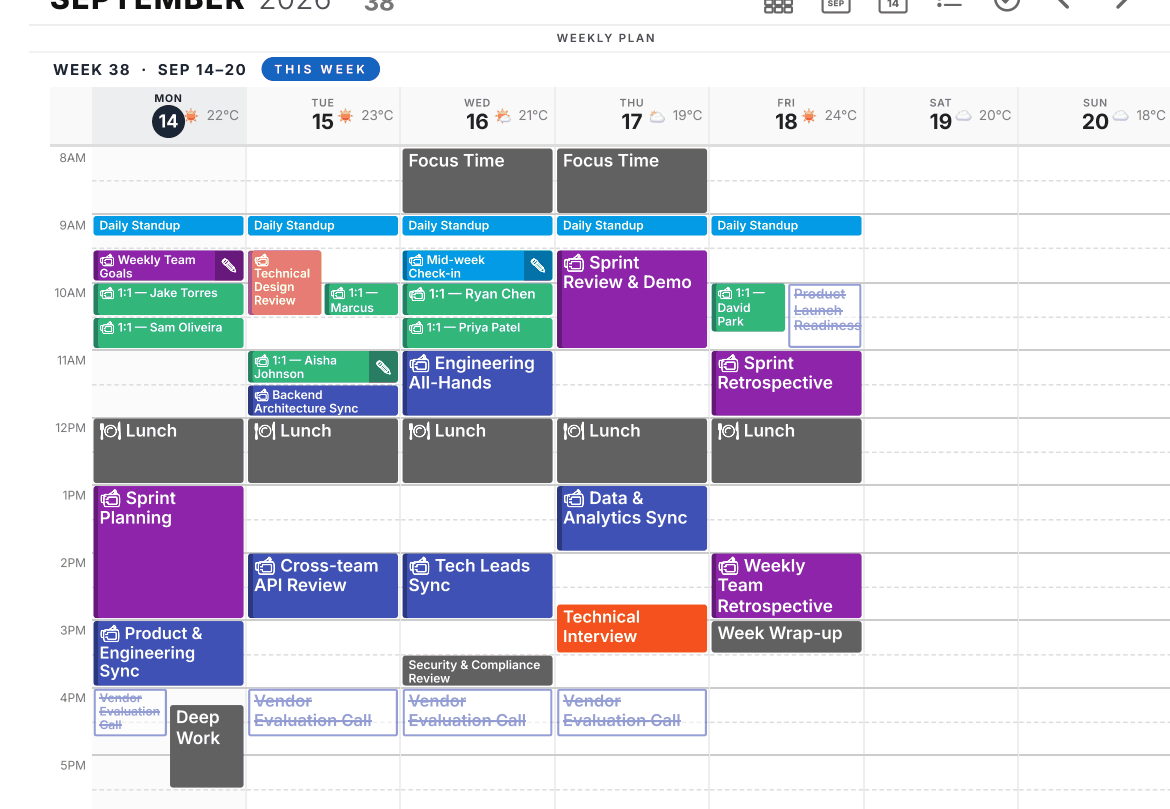
Workweek (Mon–Fri) or full week — five wider columns, or seven narrower ones including the weekend. Weekend events are still on their Day Views and on the Month View whichever you choose.
Month View
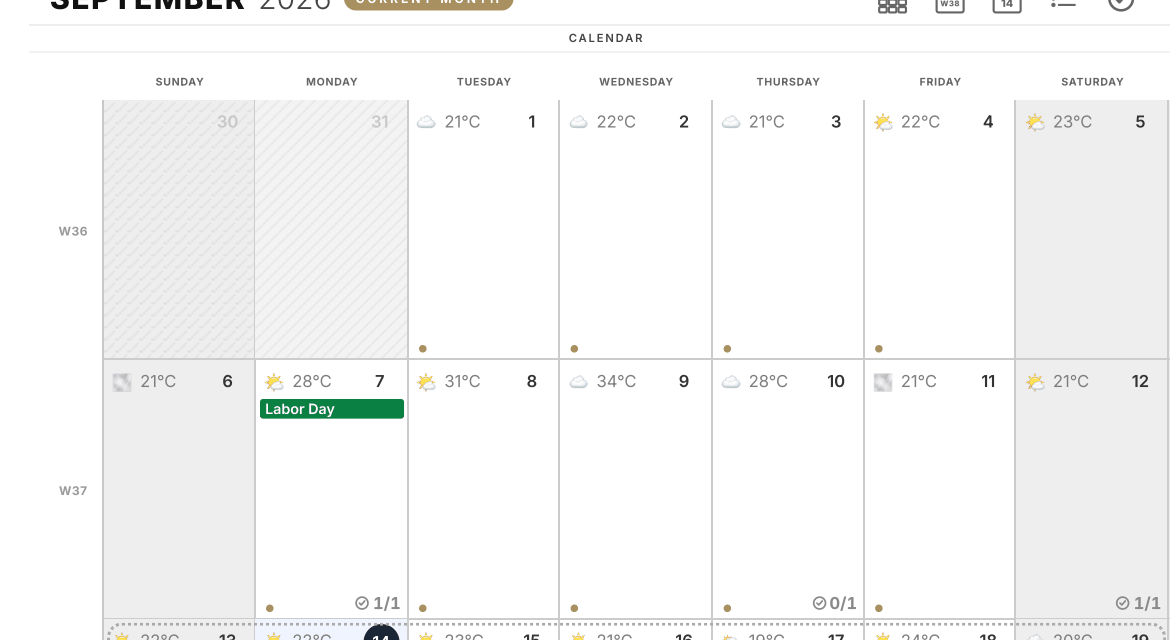
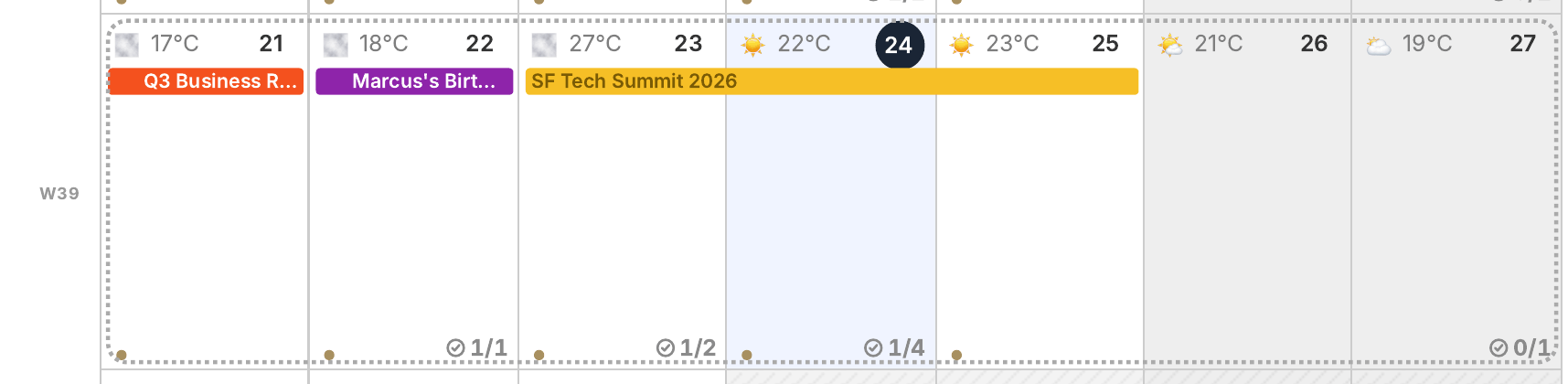
Show all-day events — all-day and multi-day events as colored pills spanning their days. Turn it off for a cleaner grid if you have many.
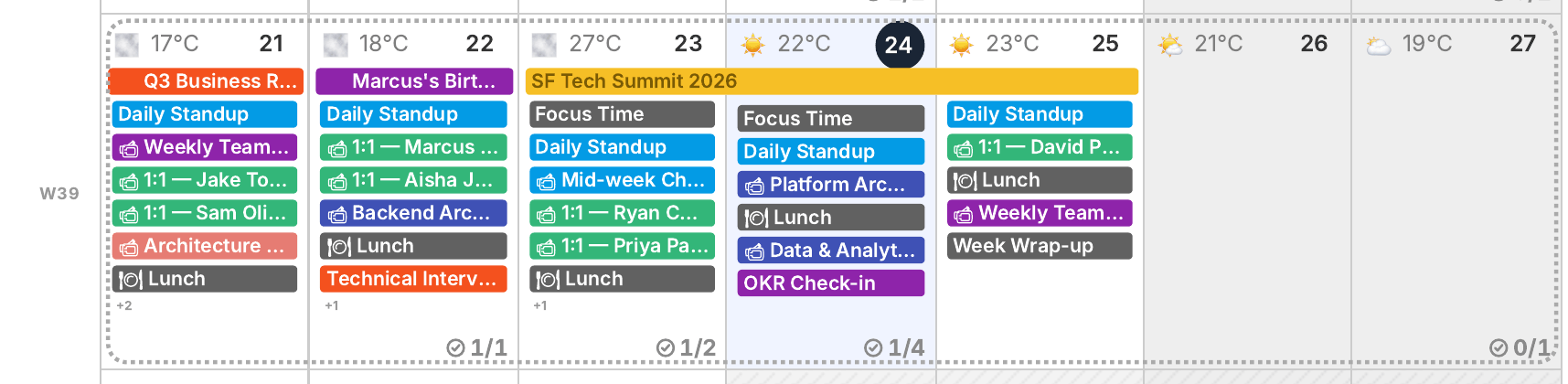
Show timed events — off: timed events are a small dot per day; on: pills with the event title. Dots keep the month readable when your days are full; pills are handy when you want to see what's coming without opening the day.
Cell style — Planning mode shows up to three events per day and keeps white space for handwriting in every cell; Calendar mode fills the cell with everything on your calendar.
The same week with all-day events only, in Planning mode:
And with timed events on, in Calendar mode:
Apply the change
Settings save as you change them; press Sync now to regenerate the planner. For what each view looks like, see Day View, Week View and Month View.