
Planner looks narrow, small or cut off
The planner is a PDF page with fixed proportions; the reMarkable decides how to fit it on the screen. Three adjustments on the tablet cover every case.
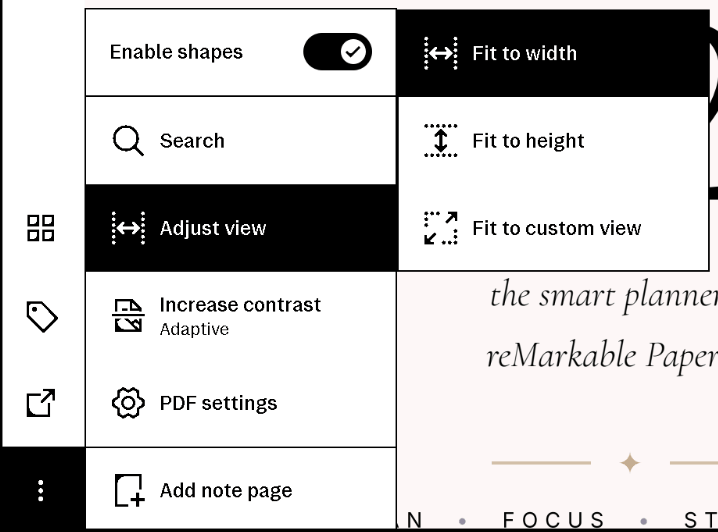
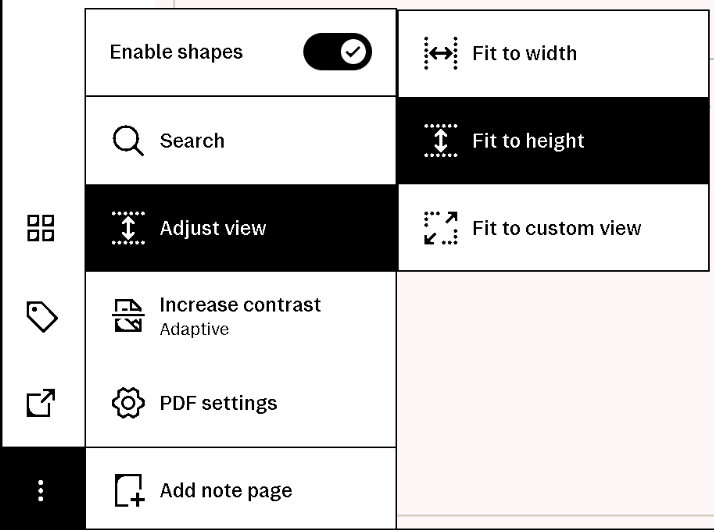
Adjust view: Fit to height / Fit to width
Open the planner, tap ⋮ menu (three dots) → Adjust view, and choose:
Fit to width — the default: the page fills the width and you scroll vertically. Handy for a full-size planner on a Move, or for writing large on a Day View.
Fit to height — the whole page is visible, top to bottom. The right choice for a Move-layout planner on a Paper Pro or reMarkable 2 (tall and centered), and for a page that suddenly appears narrow after a sync or a software update.
It's a display setting on the tablet, applied to the planner document; nothing changes in Dayfolio and no sync is needed.
Landscape on the Move
A full-size planner on a Paper Pro Move is easier to read in landscape: the page gets noticeably more width. Rotate the tablet (or set the orientation from the ⋮ menu (three dots)). For a planner made for the Move, the Move layout needs neither landscape nor zoom.
Event times hidden behind the toolbar
On the Move and the Paper Pure, the reMarkable side toolbar can overlap the left edge of the schedule and hide the first digit of the hour labels. Collapse the toolbar while reading (tap its handle); the times are complete underneath.
Links don't respond
That's not a display issue: tap links with your finger; the pen draws. If a finger tap opens the wrong page, see Repair planner index.
Text too small to read
On the Move, try landscape first. On any device, the settings that make the printed text bigger are in Dayfolio: Calendar event text size: Large in Step 4 and High legibility in Step 1 — see Day, Week & Month View settings and Appearance.