
More room for notes: Fixed pages or Scrollable
Each meeting can have up to three pages of writing space, created automatically with your planner, so you never have to add pages in the middle of a meeting. You choose the layout and how much space each meeting gets in Step 7 — Meeting notes: open your planner page at app.dayfolio.io → Edit settings → Step 7.
On every layout, Action Items sit at the top of the first page, right below the meeting description, with the notes area below. Your follow-ups are always on page 1, however much you write.
Meeting page layout
Fixed pages — standard-size pages, like a notebook. Swipe between them, or tap the Page 1 · 2 · 3 tabs on every page to jump straight to one. Easy to find things again, and they print and export at a normal page size.
Scrollable — one tall page that grows downward, up to three screens long. Just keep writing: the whole meeting stays together on a single page.
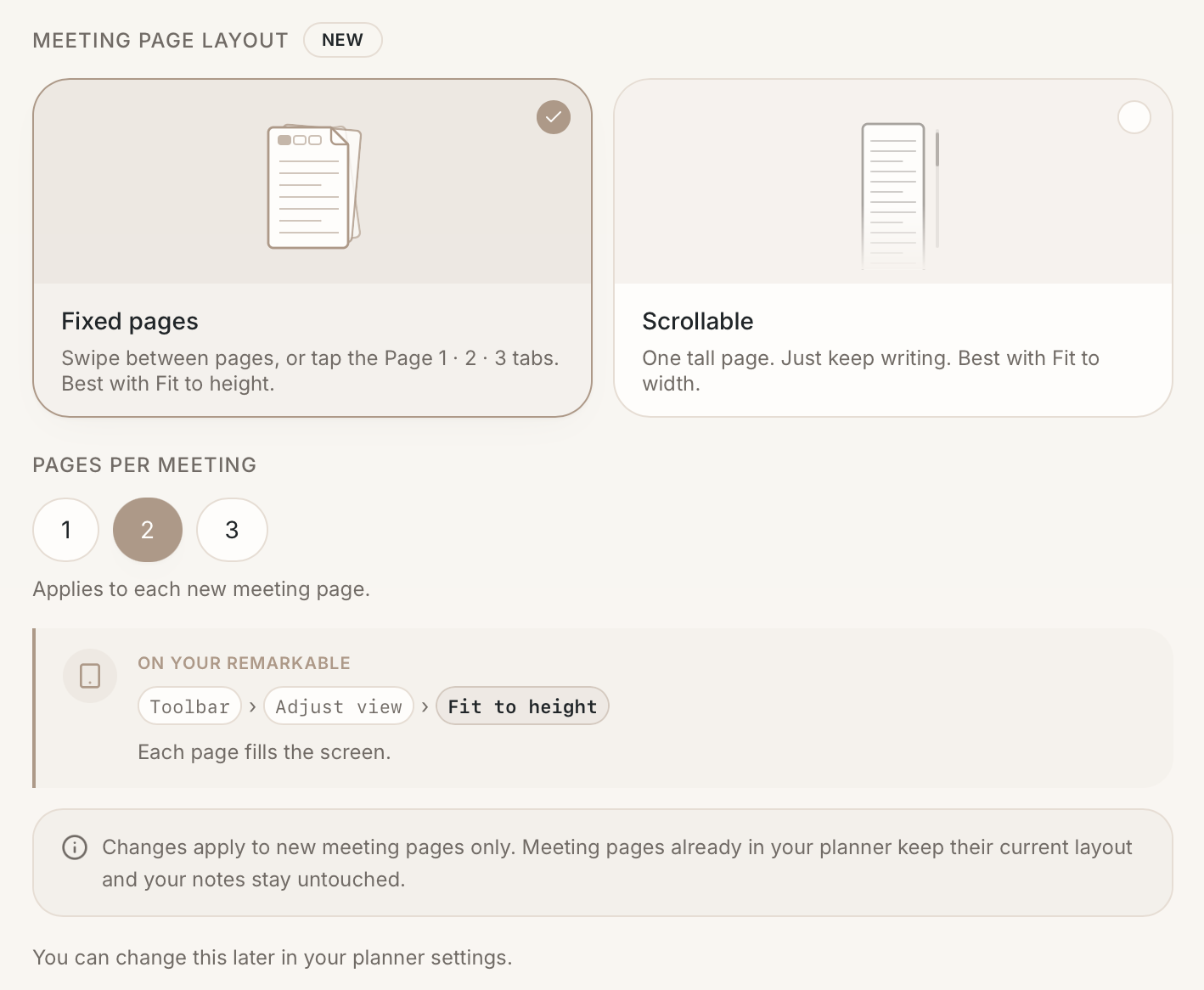
Pages or screens per meeting
Choose 1, 2 or 3. With Fixed pages, this is the number of pages each meeting gets (Pages per meeting). With Scrollable, it's how many screens tall the page is (Screens per meeting). Choosing 1 keeps a single page, as before.
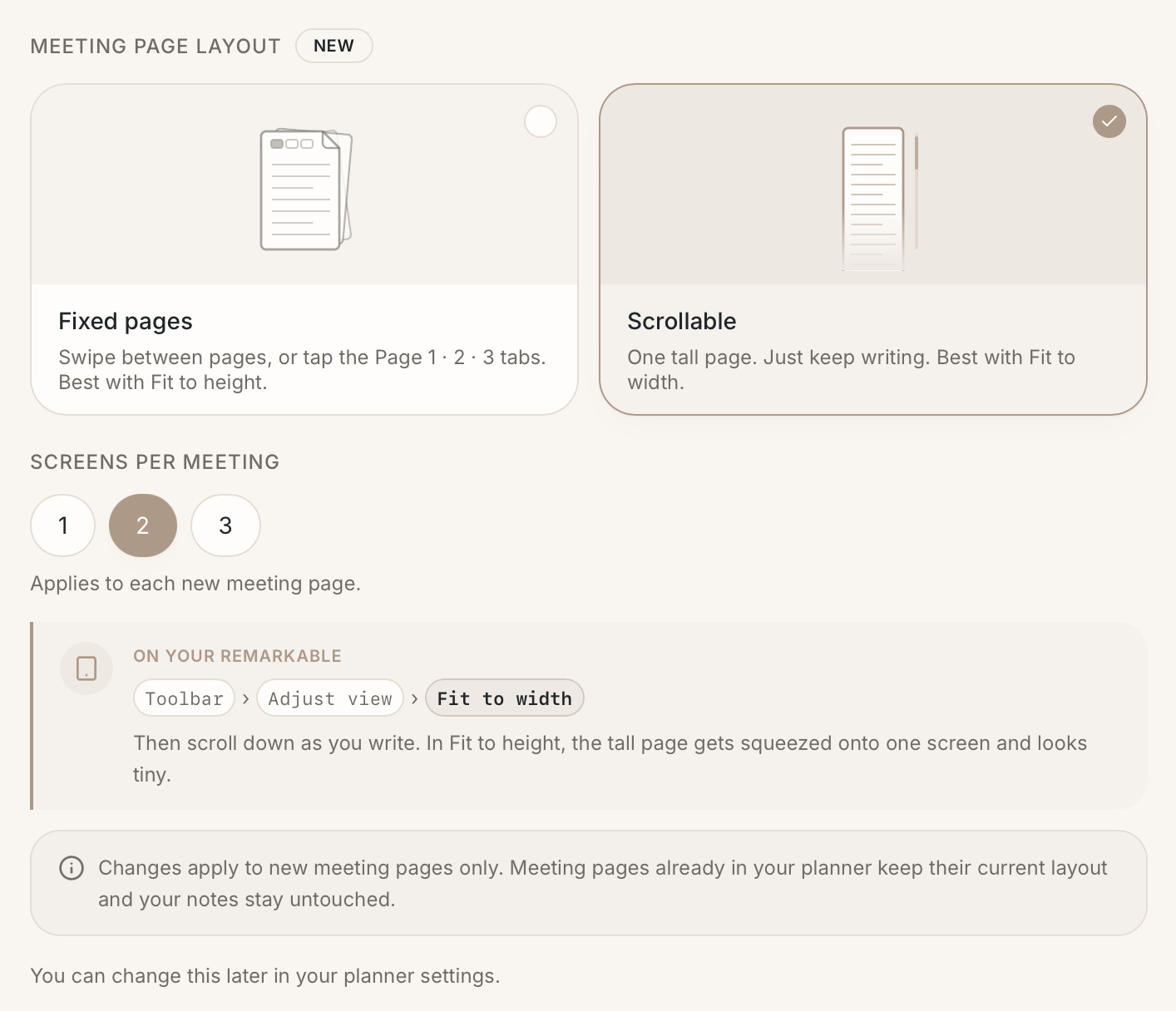
Set the view on your reMarkable
The reMarkable's Adjust view setting decides how a page fits on the screen, and each layout has its best match. Open the toolbar → Adjust view:
Fixed pages → Fit to height. Each page fills the screen.
Scrollable → Fit to width. The page fills the width of the screen and you scroll down as you write.
Scrollable notes look tiny? Your planner is probably in Fit to height, which squeezes the whole tall page onto one screen. Switch to Adjust view → Fit to width.
Apply the change
Settings save automatically; press Sync now to regenerate the planner.
The new layout applies to new meeting pages only. Meetings that already have a page keep it exactly as it is, so nothing shifts and your handwriting stays in place. You can switch layouts at any time; only meeting pages created after the change are affected.
What about recurring meetings?
There's nothing to cancel or recreate. Each occurrence of a recurring meeting gets its own page when it enters your planner window (see How far ahead pages are created). Occurrences that already had a page keep their current layout; every occurrence after that gets the new one automatically. Within a few weeks, the whole series is on the new layout.
Which one should I pick?
There's no wrong answer: when we asked Dayfolio users, the vote came down to a near tie.
Pick Fixed pages if you like to find things again later, print or export your notes, or prefer tapping to scrolling on e-ink.
Pick Scrollable if you'd rather keep writing without stopping to flip a page.
What else is on a Meeting Notes page — badges, attendees, description, notes area — is described in Meeting Notes pages.